How to Remove Background Noise in Clipchamp: Noise Suppression Steps, Detach Audio Gotchas, and When to Clean the Exported File Instead
Quick answer
Yes, you can remove background noise in Clipchamp, but for a video clip you usually need to detach the audio first. Microsoft’s editor workflow applies noise suppression to audio clips, detached audio, and audio recordings. If you click the video clip and do not see the control, that is the most common reason.
Clipchamp’s built-in noise suppression is best for light, steady noise under otherwise understandable speech, such as mild room tone, fan noise, hum, or light mic static. It is less reliable for heavy wind, loud overlapping voices, severe room echo, or clipped/distorted audio. In those tougher cases, the better workflow is to export the file, clean Clipchamp audio with SimpleClean, then re-import it for final editing.
Where Noise suppression lives in Clipchamp
According to Microsoft Support, Noise suppression is part of Clipchamp’s editor workflow, not a general playback switch for every video you watch. In the editor, you’ll find it after selecting a supported audio item in the timeline.
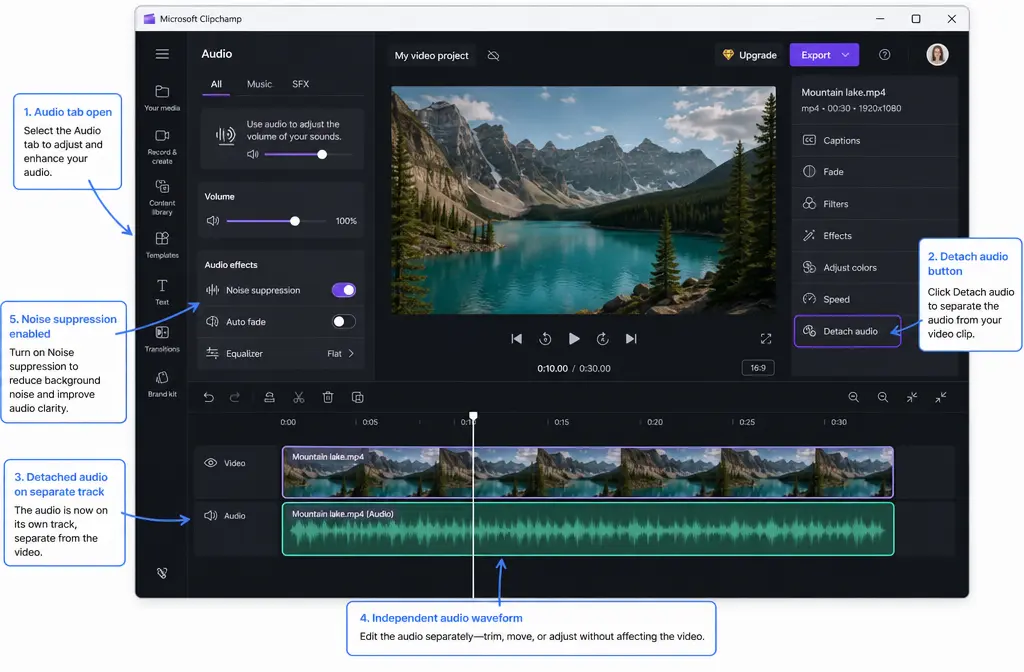
- For video clips: add the video to the timeline, open the Audio tab, detach the audio, then select the detached audio clip.
- For audio-only clips: select the audio clip in the timeline and open the relevant audio controls.
- For recordings: Microsoft says the feature also works on audio recordings in Clipchamp.
A major confusion point: Microsoft also documents a separate noise suppression on/off option for Microsoft 365 video playback. That article is about player-level listening behavior, not editor cleanup. If you are trying to permanently improve your exported video’s sound, you want the editor feature instead.

Step-by-step: remove background noise from a video clip in Clipchamp
- Import your video into Clipchamp.
- Drag the video onto the timeline.
- Select the video clip and open the Audio tab.
- Choose Detach audio. This creates a separate audio clip on the timeline.
- Click the detached audio clip, not the original video clip.
- Turn on Noise suppression.
- Preview the result carefully. Listen for cleaner speech, but also listen for side effects like a thin, watery, or robotic voice.
- Continue editing if it sounds good, or turn the feature off if the voice quality gets worse.
This detach-audio step is the single biggest Clipchamp gotcha for this feature. If the toggle seems missing, you may simply have the wrong clip selected.
Step-by-step: remove background noise from audio-only clips or voice recordings
- Import the audio file or use your Clipchamp recording.
- Add it to the timeline.
- Select the audio clip or recording.
- Open the audio controls and enable Noise suppression.
- Preview before exporting. If speech becomes unnatural, revert and use a separate cleanup workflow instead.
This is simpler than the video workflow because there is no need to detach audio first.
What Clipchamp says Noise suppression can reduce
Across Microsoft Support and Clipchamp’s product pages, the feature is described as reducing:
- Background noise
- Hum
- Echo or room echo
- Mic static
That tells you the intended use case: spoken audio that is mostly usable already, but needs a quick cleanup pass inside the editor.
When Clipchamp is enough vs when to clean the exported file instead
| Situation | Use Clipchamp Noise suppression? | Better move |
|---|---|---|
| Light fan, HVAC, or room noise under clear speech | Yes, usually a good first try | Stay in Clipchamp if the voice still sounds natural |
| Mild hum or light mic static | Often yes | Preview closely for voice thinning |
| Noisy screen recording with steady background sound | Maybe | Use Clipchamp first, then export-clean-reimport if residue remains |
| Windy outdoor talking-head video | Usually not enough | Export and remove wind noise with SimpleClean |
| Hollow, echoey room audio | Sometimes partial improvement only | Export and clean separately if speech still sounds distant |
| Overlapping conversation or loud background voices | Usually struggles | Use a dedicated cleanup workflow after export |
| Clipped or distorted speech | No reliable fix | Export and try specialized repair, then re-import |
| Voice becomes watery, robotic, or thin after suppression | No | Turn it off and clean the file outside Clipchamp |
Best use cases for Clipchamp noise suppression
Clipchamp is most useful when you need a fast editor-native fix and your speech is already fairly understandable. Good fits include:
- Windows creators editing webcam explainers
- Educators cleaning lecture intros or short lesson clips
- Marketers polishing voice-led social edits
- Internal business videos with mild office noise
- Simple screen recordings with low-level background hiss or hum
If the problem is modest and consistent, using the built-in tool saves time because you do not need to leave the editor.
What Clipchamp usually struggles with
This is where most competing articles stay too vague. Based on how Microsoft positions the feature, Clipchamp is not best treated as a full audio restoration suite. Expect weaker results when dealing with:
- Heavy wind
- Loud overlapping voices
- Severe room echo or hollow reverb
- Distortion or clipping
- Music-heavy audio where speech is not clearly separated
If your recording has multiple problems at once, built-in suppression may reduce some noise but still leave the overall result sounding rough.
How to tell when the result is overprocessed
Noise suppression is not always a free improvement. Stop and compare before and after if you hear:
- A robotic or metallic tone
- Speech that sounds thin or hollow
- Words fading in and out unnaturally
- Background pumping between phrases
- Loss of clarity on consonants
If that happens, the cleanup is too aggressive for the source file. Turn the feature off and use a file-level repair workflow instead.

Best order with nearby Clipchamp tools
If you are using multiple Clipchamp AI or audio features together, this order is the safest starting point:
- Apply Noise suppression first so you judge the cleaned speech before making other decisions.
- Then use silence removal if your workflow needs tighter pacing.
- Then review captions because clearer audio should help subtitle accuracy and editing review.
If you also need subtitles after cleanup, Best AI Captions is a natural next step for adding captions and subtitles. If you want to publish multilingual versions of the same cleaned video, Translate Dub can help with translation, dubbing, and captions.
Troubleshooting: why can’t I find noise suppression in Clipchamp?
- You selected the video clip instead of the detached audio clip. For many users, this is the whole issue. Detach audio, then click the waveform clip.
- You are mixing up the editor with the player. Microsoft’s playback noise suppression article is about listening in Microsoft 365 video playback, not editing and exporting a permanently cleaned file.
- You are looking in the wrong workflow. Microsoft documents this as an editing feature that works on audio clips, detached audio, and recordings.
- You are unsure about account/version availability. Microsoft’s feature comparison documents Clipchamp variants, while the separate playback article applies to work-account playback behavior rather than editor cleanup.
If you are in the editor and have selected the actual audio item, that is the right place to check first.
Export-clean-reimport workflow for stubborn files
When Clipchamp’s suppression leaves hiss, echo, wind, or a damaged-sounding voice behind, do not keep stacking fixes blindly. A cleaner workflow is:
- Finish your rough edit in Clipchamp.
- Export the video or export the audio you need to repair.
- Run the file through SimpleClean for dedicated speech cleanup.
- Re-import the cleaned file into Clipchamp.
- Replace the noisy section or swap in the cleaned master audio.
- Export the final version.
This is the better option when the built-in tool is not enough, or when it technically reduces noise but harms the voice.
After cleanup, you can turn that finished video into a stronger distribution workflow too: add captions with Best AI Captions, localize it with Translate Dub, and schedule or distribute clips across channels with Mallary.ai if your team handles multi-platform publishing.
Best for: quick recommendations
- Best for staying inside Clipchamp: mild steady background noise under clear speech
- Best for educators and screen-recording workflows: quick cleanup before trimming silences and reviewing captions
- Best time to leave Clipchamp: wind, strong echo, overlapping voices, distortion, or overprocessed voice artifacts
- Best SimpleClean use case: exported MP4 or audio that still sounds noisy after Clipchamp, or gets worse when suppression is enabled
FAQs
Do I have to detach audio to remove background noise in Clipchamp?
For a video clip, yes, Microsoft’s documented workflow says to detach the audio first. The editor feature works on audio clips, detached audio, and recordings.
Does Clipchamp noise suppression work on MP4 files?
It works on the audio associated with your project items inside the Clipchamp editor. For MP4 video clips, the key step is detaching the audio and applying suppression to that detached audio clip.
Can Clipchamp remove echo from video?
Clipchamp says the feature can reduce echo, but results are likely to be best on milder cases. Severe hollow room sound may need an export-and-clean-separately workflow.
Does Clipchamp noise suppression work on audio-only files?
Yes. Microsoft says it works on audio clips, so audio-only files are a supported use case.
Why does Clipchamp make my voice sound weird, robotic, or thin?
That usually means the suppression is overprocessing the file. Turn it off if speech quality drops, then export and clean the file separately instead of forcing the built-in effect.
What’s the difference between Clipchamp editor noise suppression and the video player noise suppression toggle?
The editor feature changes your project audio for export. The player toggle Microsoft documents separately is about playback behavior in Microsoft 365 video viewing, not permanent audio cleanup inside the editor.
Is noise suppression available in Clipchamp work and personal versions?
Microsoft’s Clipchamp documentation includes feature comparison guidance across variants, and the noise suppression workflow is documented as part of Clipchamp editing. The separate playback-toggle article should not be used to judge editor availability because it refers to player behavior for Microsoft 365 video playback.
When should I export from Clipchamp and clean the audio separately?
Do that when Clipchamp leaves obvious noise behind, when speech turns watery or metallic, or when the recording has harder problems like wind, strong echo, overlapping voices, or distortion. In those cases, clean exported video audio with SimpleClean and bring it back into Clipchamp for the final cut.
Bottom line
Clipchamp absolutely can remove some background noise, but the practical workflow matters: for video, detach audio first and apply Noise suppression to the detached clip. For mild steady noise, that may be all you need. For wind, severe echo, overlapping speech, or voice damage from overprocessing, exporting the file and using a dedicated cleanup pass is the smarter move.
If Clipchamp gets you only halfway there, use it for the edit, then fix noisy Clipchamp exports with SimpleClean before your final render.
Sources and further reading
- How to use noise suppression | Microsoft Support - Primary source for the editor workflow, detach-audio requirement, supported clip types, and ability to turn the feature on or off.
- Turn noise suppression on or off | Microsoft Support - Used to clarify the common confusion between editor cleanup and player-level playback noise suppression in Microsoft 365 video viewing.
- Feature comparison between Clipchamp for work and personal versions | Microsoft Support - Used for careful account/version context so readers do not confuse product variants with playback-only documentation.
- What’s new | Clipchamp - Supports Clipchamp’s positioning of the feature as AI noise suppression that reduces background noise, echoes, and mic static.
- AI video editing features | Clipchamp - Supports intended use cases and adjacent AI workflow context including captions and other editing helpers.
- Video editing features | Microsoft Support - Confirms the feature belongs within Clipchamp’s editing toolset and helps frame nearby tools like silence removal.
- Microsoft Clipchamp (2026) review | TechRadar - Independent third-party confirmation that noise suppression is a current capability users evaluate in Clipchamp.