How to Fix iMovie Background Noise Reduction Not Working: Missing Controls, Greyed-Out Audio, iPhone/iPad Limits, and Better Fallbacks
Quick Answer
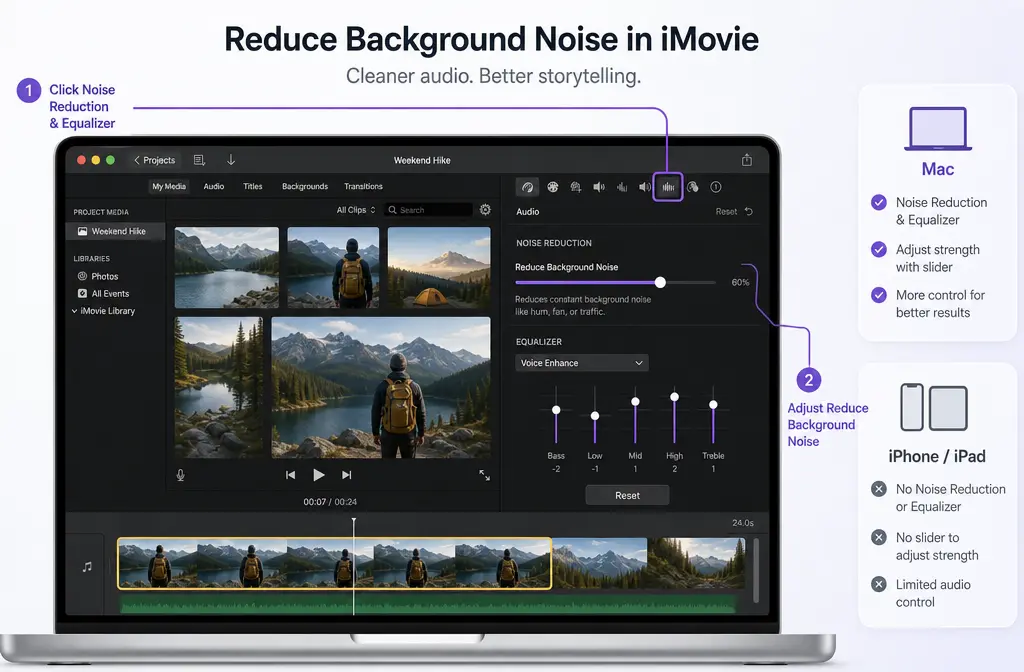
If iMovie background noise reduction is “not working,” the first thing to check is your device. On Mac, iMovie includes a Noise Reduction and Equalizer control. Apple says you access it by selecting a clip in the timeline, opening the audio controls, checking Reduce background noise, and adjusting the slider from 0% to 100%. On iPhone and iPad, Apple’s iMovie audio controls cover volume, mute, fades, and speed, but not a matching direct background-noise reduction button. So if you are following a Mac tutorial on mobile, the tool is not hidden; it is simply not there in the same form. Apple’s Mac guide and Apple’s iPhone guide make that distinction clear.
If you are on Mac and the control is missing, greyed out, or doing almost nothing, the usual causes are:
- you are on the wrong device or following the wrong tutorial
- the clip is not selected in the timeline
- the project or media import is glitching
- the noise is the kind iMovie handles poorly, such as nearby voices, strong wind bursts, or room echo
When iMovie’s cleanup is too weak or starts making speech sound thin, a faster fallback is to export the clip and clean noisy dialogue with SimpleClean, then bring the improved audio or video back into your edit.
Symptom guide: what your exact problem usually means
| Symptom | Most likely cause | What to do next |
|---|---|---|
| Reduce background noise control seems missing | You are on iPhone/iPad, using the wrong tutorial, or have not selected a clip | Confirm platform first. On Mac, select the clip and open Noise Reduction and Equalizer. On iPhone/iPad, use a workaround because there is no equivalent direct button in Apple’s mobile guide. |
| Noise Reduction and Equalizer is greyed out | Clip or project issue, import/render oddity, or troublesome media encoding | Test the clip in a new project, then try re-exporting or converting the source and reimporting. |
| Slider works but changes almost nothing | The noise is too complex for iMovie, or reduction is set too low | Try a modest increase, preview speech carefully, and use a dedicated cleanup fallback if needed. |
| Voice becomes robotic, thin, or tinny | Too much noise reduction | Back the slider down and use lighter enhancement or separate cleanup. |
Where the control lives in iMovie on Mac
According to Apple, the path on Mac is straightforward once the clip is selected:
- Select an audio or video clip in the timeline.
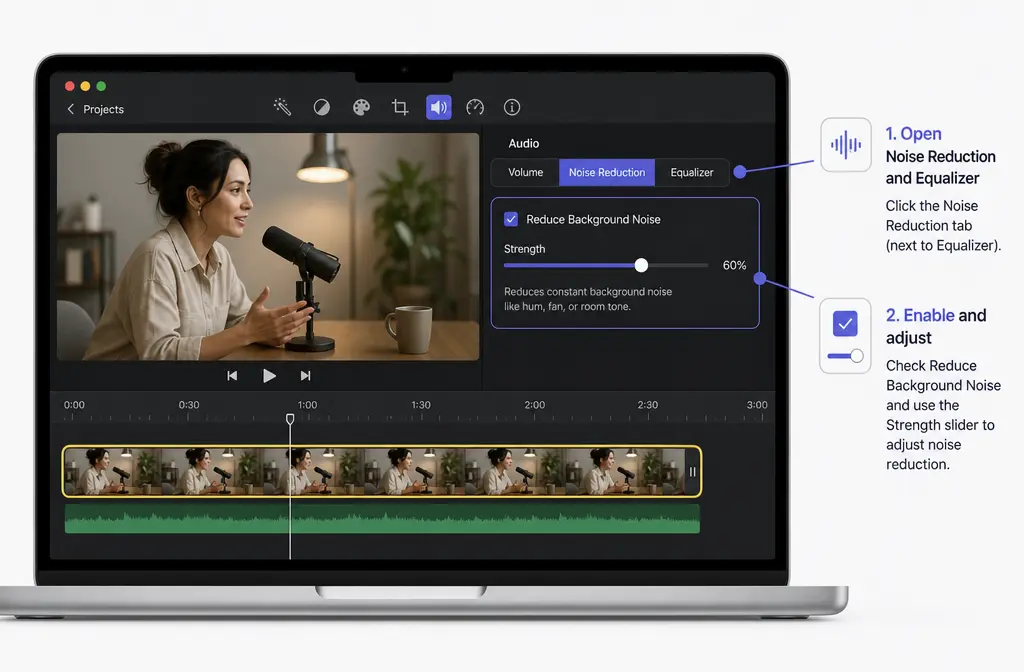
- Click the Noise Reduction and Equalizer button.
- Check Reduce background noise.
- Move the slider to choose how much noise reduction you want.
Apple documents a range from 0% to 100%. The same panel also includes equalizer controls and options like Voice Enhance and Hum Reduction. Source: Apple Support.
Why “Reduce Background Noise” looks missing
Most searchers are not dealing with a bug. They are dealing with a mismatch between platform, tutorial, and expectations.
1. You are on iPhone or iPad
This is the biggest one. Apple’s iPhone iMovie documentation lists audio controls like volume, mute, fade, and speed, but it does not show the same direct background-noise reduction tool found in the Mac version. That is why so many users feel like the button has vanished. In practice, the mobile app does not offer the same control shown in Mac screenshots. Apple’s iPhone guide supports this.
2. You are following an older or wrong tutorial
Some tutorials jump between Mac, iPad, and iPhone without making the distinction obvious. If the instructions mention clicking a toolbar button called Noise Reduction and Equalizer, that tutorial is for Mac, not for iPhone editing.
3. The clip is not selected
On Mac, the control appears in the clip inspector workflow. If nothing is selected in the timeline, you may not see the controls you expect.
4. You are looking in the wrong place
Users often look in project settings or general preferences. Apple places this under the selected clip’s audio enhancement controls, not as a global project switch.
Why the control is greyed out
If you are on Mac, have selected a clip, and the button is still unavailable, that is when actual troubleshooting begins.
What official Apple troubleshooting supports
Apple’s general iMovie troubleshooting guidance recommends steps such as:
- update iMovie
- update macOS where appropriate
- test whether the issue happens in a new library or project
- check permissions
- reset iMovie
- reinstall the app if needed
Apple’s “If iMovie for Mac isn’t working” page is the official source for those broader fixes.
What the Apple Community workaround suggests
An Apple Community thread describes a real-world case where Noise Reduction and Equalizer was greyed out for some videos. The community suggestion was to test the same media in a new project and, if needed, re-render or convert the clip before importing it again. One specific community suggestion mentioned converting problematic media to H.264 MP4 with AAC audio before reimporting. That is useful as a workaround, but it is community guidance, not official Apple policy.
A practical order to try
- Duplicate the project or create a new test project.
- Import the same clip into that new project.
- If the control works there, the original project may be the issue.
- If it still does not work, export or convert the source clip, then reimport it.
- If the problem continues across projects, use Apple’s official reset or reinstall steps.
What iMovie can fix well, and what it usually cannot
iMovie’s background noise reduction is best treated as a basic cleanup tool, not a miracle repair tool.
Usually worth trying in iMovie
- light steady fan noise
- mild hiss or constant background bed
- small hum issues when paired with the right EQ or hum-related option
Often disappointing in iMovie
- other people talking near the speaker
- strong wind bursts
- room echo or reverb
- busy street ambience
- heavy background noise that overlaps the voice constantly
This lines up with the research brief and with the broader caution from Macworld that aggressive reduction can make audio sound tinny. It also matches the common-sense limitation of a basic editor tool: if the noise overlaps speech in complicated ways, the slider may not separate them cleanly.
Best for: should you keep troubleshooting or switch tools?
| Situation | Best option | Why |
|---|---|---|
| You are editing on Mac and just need lighter cleanup | Stay inside iMovie | The built-in slider is quick for mild steady noise. |
| You are editing on iPhone or iPad | Clean before import or after export | The direct Mac-style noise reduction control is not part of the mobile workflow Apple documents. |
| The button is greyed out for one clip | Try a new project and reimport a converted file | That matches Apple troubleshooting plus the community workaround. |
| Speech still has voice bleed, wind, or echo | Export and use a dedicated cleaner | These are exactly the cases where iMovie tends to hit its limit. |
| Reduction makes dialogue thin | Use less reduction or separate cleanup | Over-processing causes artifacts faster than it solves the problem. |
If you reach that last two rows, SimpleClean makes the most sense as a fallback workflow rather than endless slider tweaking inside iMovie.
Safer settings workflow on Mac
If the control is available, do not jump straight to a high percentage.
- Turn on Reduce background noise.
- Start low.
- Preview the actual spoken lines, not just silent gaps.
- Increase gradually until the noise drops without making the voice brittle.
- If needed, test an EQ preset like Voice Enhance.
- If the problem is hum-related, try the relevant hum or EQ option rather than cranking noise reduction alone.
Apple confirms the slider behavior and the presence of EQ options, while Macworld’s guidance is the reason to stay conservative: too much reduction can sound unnatural or tinny. Apple source. Macworld source.

How to fix iMovie background noise reduction not working
On Mac
- Confirm you are editing in iMovie for Mac. If you are on iPhone or iPad, skip to the mobile workaround section.
- Select the clip in the timeline. Do not assume the control is global.
- Open Noise Reduction and Equalizer. Check Reduce background noise and test a low percentage first.
- If the control is greyed out, test the clip in a new project. This helps separate clip issues from project issues.
- Re-export or convert the source clip and reimport it. Community reports suggest this can restore unavailable controls for problematic media.
- Run Apple’s broader app fixes if the problem affects multiple clips. Update, reset, check permissions, or reinstall iMovie if needed.
- Stop when the voice starts sounding thin. At that point, export and use a dedicated cleaner instead of pushing the slider further.
On iPhone or iPad
- Do not keep hunting for the Mac button. Apple’s mobile documentation does not show the same direct noise reduction control.
- Clean the audio before import if possible.
- Or export the finished video and clean it afterward.
- Reimport the cleaned result if you still need to trim or arrange inside iMovie.
Export-and-clean fallback workflow for MP4 or MOV files
When iMovie cannot separate speech from wind, echo, or nearby voices, the cleanest workflow is often:
- Finish your rough cut in iMovie.
- Export the video.
- Run the exported file through a dedicated cleanup tool to improve dialogue.
- Bring the cleaned file back into your edit if needed for final tweaks.
That approach is especially useful for talking-head videos, interviews, class presentations, and simple client edits where the picture is fine but the dialogue needs help. If your main issue is wind or noisy speech, remove wind noise with SimpleClean after export instead of forcing iMovie to do a job it is not built to do.
If you are also preparing the video for publishing, you can add subtitles with Best AI Captions, create multilingual versions with Translate Dub, and schedule distribution across social platforms with Mallary.ai. That is a practical stack when one cleaned interview or explainer needs to become clips, captioned posts, and translated variants.
When to stop tweaking iMovie
Keep troubleshooting inside iMovie if:
- the control is available
- the noise is mild and steady
- the voice still sounds natural at lower settings
Switch to a separate cleanup workflow if:
- the tool is unavailable on your device
- the control is greyed out and project fixes fail
- the noise includes other voices, echo, or wind
- higher settings make speech sound metallic, hollow, or thin
If you want a more general workflow for fixing noisy video audio outside a single editor, see our guide on how to remove background noise from video online.
FAQ
Why is Reduce Background Noise missing in iMovie?
The most common reason is that you are using iMovie on iPhone or iPad, where Apple’s documented audio controls do not include the same direct background-noise reduction button shown in Mac tutorials. On Mac, it can also seem missing if no clip is selected or you are looking in the wrong panel.
Why is Noise Reduction and Equalizer greyed out in iMovie?
A greyed-out control usually points to a clip or project issue rather than a normal setting. Test in a new project first. If that fails, re-export or convert the source clip and reimport it. Apple Community users have reported this helping with troublesome media, while Apple’s official troubleshooting covers update, reset, and reinstall steps.
Does iMovie on iPhone or iPad have background noise reduction?
Apple’s iPhone iMovie guide documents volume, mute, fades, and speed, but not the same direct background-noise reduction control available on Mac. So for practical purposes, if you want that exact feature, you need Mac or an external cleanup workflow.
Can iMovie remove background voices?
Not reliably. iMovie is better with mild steady noise than with competing speech. If someone else is talking near the main speaker, expect limited results.
Can iMovie remove wind noise or echo?
Sometimes a little, but these are common cases where the built-in control is not enough. Strong wind bursts and room echo usually need a stronger cleanup approach than iMovie’s basic slider.
What percentage should I use for iMovie noise reduction?
Start low and increase gradually while monitoring the voice itself. Apple confirms the control ranges from 0% to 100%, but there is no universal best percentage because different recordings break down at different points.
Why does iMovie make my voice sound tinny after noise reduction?
That usually means the reduction is too aggressive. Macworld specifically warns that over-processing can make audio sound tinny. Back off the slider and use lighter enhancement, or clean the exported file separately.
Bottom line
Most “iMovie background noise reduction not working” searches come down to one of four answers: the user is on iPhone/iPad, the clip is not selected, the media/project is glitching, or the noise is simply too hard for iMovie to fix well. Use the built-in control on Mac for light cleanup, but do not waste time forcing it to solve voice bleed, wind, or echo. When that happens, exporting the file and using a dedicated dialogue cleanup workflow is usually the faster route.
And once the audio is fixed, you can caption with Best AI Captions, translate versions with Translate Dub, and distribute finished clips through Mallary.ai if you are repurposing the edit for multiple channels.
Sources and further reading
- Apple Support: Add a soundtrack and sound effects to your iMovie project - Supporting Apple overview page for iMovie audio features across platforms.
- iDownloadBlog: How to reduce background noise in iMovie - Supporting reference for the practical distinction between Mac steps and the mobile limitation.