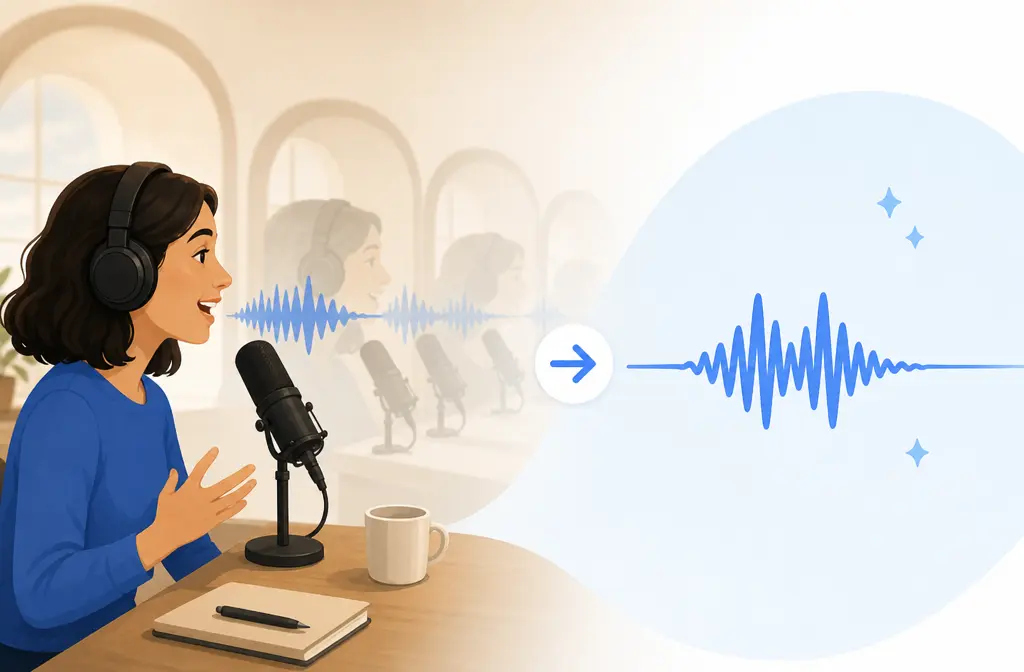
If you need to remove echo in Descript, the safest workflow is simple: use Studio Sound first on a short test section, compare before and after, and stop as soon as the room echo becomes less distracting. Descript says Studio Sound can reduce echo and reverb in uploaded audio and video, and it tends to work best on spoken-word clips with mild to moderate roominess, not extreme, bathroom-like reflections. For live recording sessions, Descript Rooms has separate echo-cancellation settings meant for capture-time problems rather than post-production cleanup. For more speech-cleanup guidance, SimpleClean also covers practical audio-fix workflows.
Quick answer
Yes, Descript can reduce echo with Studio Sound. The basic workflow is to import your file, select the clip or track, open the audio settings in the Properties or Audio Effects area, turn on Studio Sound, preview the result, and then export if the voice still sounds natural, based on Descript’s own workflow and feature pages: Descript Blog, Studio Sound, and Remove Reverb. If the voice starts sounding hollow, robotic, lispy, or unnaturally smoothed over, back off instead of pushing harder. In live Descript Rooms sessions, echo cancellation is a separate recording setting and Descript says it is recommended when someone is not using headphones: Descript Rooms settings.
That distinction matters:
- Studio Sound: for cleaning echo or reverb after recording.
- Rooms echo cancellation: for reducing live session echo during recording.
What “echo” means in Descript
When people search for “remove echo in Descript,” they usually mean one of two different problems:
- Room echo or reverb in a recorded voice track: the speaker sounds distant, roomy, or reflective because the mic picked up the room.
- Live call echo, feedback, or crosstalk in Descript Rooms: audio from speakers leaks back into the mic during a remote session.
Descript addresses those with different tools. Studio Sound is the post-production fix Descript positions for background noise and echo reduction in uploaded audio and video: descript.com/studio-sound. Descript Rooms includes an echo-cancellation setting for live sessions, and Descript’s help documentation says echo cancellation is recommended only if a participant is not using headphones: help.descript.com/record/room-settings.

How to remove echo in Descript step by step
If your recording is already inside Descript, this is the fastest practical workflow for spoken voice.
- Import your audio or video into Descript.
- Find the worst 20 to 30 seconds of the echo problem first. Test there before processing a full episode or interview.
- Select the clip or track you want to clean.
- Open the audio controls in the Properties or Audio Effects area.
- Turn on Studio Sound.
- Preview before and after with headphones.
- Listen for artifacts such as hollow tone, smeared consonants, swallowed word endings, or a synthetic sound.
- Apply it track by track if needed, especially on interviews where one speaker’s audio is much worse than another’s.
- Export only after the voice still sounds believable.
The editor workflow above is supported by Descript’s own how-to article on enabling Studio Sound in the Properties area: Remove Background Noise From Audio: The Fastest Methods. Testing the worst short section first is the practical safeguard that helps you avoid processing a full project before you know whether the result stays natural.
When Studio Sound is usually enough
Descript presents Studio Sound as a voice-cleanup tool for uploaded audio and video, and in practice it is most believable on speech-first material: Studio Sound. It is usually worth trying first when you have:
- Single-speaker dialogue
- Laptop-mic voiceovers with mild roominess
- Remote interviews with light room echo
- Webinar clips or talking-head videos where the room is audible but not extreme
- Podcast tracks that sound slightly distant rather than completely washed out
When Descript works well vs. when to stop early
| Situation | Should you try Studio Sound first? | Expectation |
|---|---|---|
| Mild room echo on one voice track | Yes | Often the best fit for a quick in-Descript fix |
| Moderate roominess in podcast or webinar speech | Yes | Can improve clarity, but compare carefully for artifacts |
| Severe bathroom-like reverb | Only as a test | Do not expect full repair; voice may become unnatural |
| Overlapping speakers on one track | Caution | Cleanup may be inconsistent or create obvious processing |
| Clipped, distorted, or badly damaged audio | Low trust | Echo reduction will not reliably fix the core problem |
| Very noisy plus very echoey audio | Caution | Aggressive processing can hurt clarity |
When not to trust Studio Sound alone
Descript’s official pages position Studio Sound as a strong cleanup tool, but they do not promise that every echo problem will clean up naturally: Remove Reverb. Be especially careful with these cases:
- Severe reverb: if the room sounds like tile, concrete, or a large empty space, the result may still sound processed.
- Overlapping speakers: one voice may clean up differently from another.
- Clipped or distorted audio: if the recording is already broken, dereverb will not restore missing detail.
- Very noisy files: third-party testing summaries note that aggressive cleanup can suppress too much detail: Voxota.
- Robotic or hollow voice: this is your cue to stop, not to push harder.
A good rule is: start low, compare, stop early. Use the lightest amount that removes distraction. If intelligibility drops, export the audio and do separate cleanup instead of forcing Descript to solve everything in one pass.
A practical decision tree
- Is the problem happening during a live remote session?
If yes, check Descript Rooms settings and whether the speaker is wearing headphones. - Is the problem already baked into the recording?
If yes, use Studio Sound on a short test section. - Does the voice get clearer without sounding fake?
If yes, continue. - Does the voice turn hollow, lispy, or over-smoothed?
If yes, back off and consider exporting for separate cleanup. - Is one guest much worse than the others?
If yes, troubleshoot track by track instead of assuming one setting fits everyone.
Track-by-track troubleshooting for interviews and podcasts
One of the easiest ways to avoid artificial-sounding results is to stop thinking globally. In multi-speaker edits, one guest may tolerate Studio Sound well while another falls apart under the same processing. That is especially common when:
- one person used headphones and another did not
- one mic was close and another was across the room
- one speaker recorded in a soft room and another in a reflective kitchen or office
Descript’s clip- and track-based workflow makes this kind of speaker-by-speaker testing practical: Descript Blog workflow. So instead of asking, “Does Studio Sound work on this whole project?” ask, “Which track actually benefits?”

Why Studio Sound can make voices sound fake
If Descript cleanup starts sounding artificial, you will usually hear one or more of these symptoms:
- Hollow tone: the body of the voice disappears.
- Robotic smoothness: speech sounds regenerated rather than recorded.
- Lispy or splashy consonants: S, T, and F sounds become odd or smeared.
- Swallowed word endings: the tail of phrases gets softened too much.
- Uneven speaker quality: one track sounds polished while another sounds synthetic.
Those are signs that the processing is going past cleanup and into audible reconstruction. Once that happens, do not keep chasing a perfect result inside the same pass. A more conservative export-and-clean workflow is usually safer.
When to export from Descript and clean audio somewhere else
You do not need to leave Descript for every project. But you probably should export for separate cleanup if:
- the room echo is severe
- Studio Sound improves the room but hurts intelligibility
- the file has multiple problems at once, like noise, clipping, and reverb
- different speakers need very different treatment
- you are spending more time fighting artifacts than finishing the edit
At that point, a dedicated second-pass cleanup workflow often makes more sense than trying to force a one-click fix.
Descript Rooms: what to change before you record
If the echo problem is happening during capture, prevention matters more than repair. Descript Rooms includes both echo cancellation and background noise reduction, but the official help guidance is clear that echo cancellation is recommended only when the participant is not using headphones: Descript Rooms settings.
Use this pre-recording checklist:
- Wear headphones whenever possible.
- Avoid speaker playback if you are using a live mic.
- Choose a softer room with fewer hard reflective surfaces.
- Move the mic closer to the mouth so the direct voice dominates the room.
- Reduce mic distance rather than trying to fix everything later.
- Use Rooms echo cancellation only when needed, especially if someone is not wearing headphones.
The same upstream habits are echoed in the UVA Library’s Descript remote-recording guidance: UVA Library.
FAQ
Can Descript remove reverb from audio?
Yes. Descript positions Studio Sound as a way to remove or reduce background noise and echo or reverb in uploaded audio and video: Descript Remove Reverb. It works best on spoken-word recordings with mild to moderate room echo, not extreme reverb.
Is Studio Sound good for echo or just background noise?
It is meant for both. Descript describes Studio Sound as reducing background noise and echo, but echo reduction is most convincing on voice-first material where the room problem is not too severe: Studio Sound.
How do I reduce room echo in a podcast recorded in Descript?
Import the file, select the relevant clip or track, open the audio settings in the Properties or Audio Effects area, turn on Studio Sound, and compare before and after on the worst short section first. If the voice stays natural, continue. If it turns hollow or robotic, stop early: Descript workflow guide.
Why does Descript Studio Sound make my voice sound robotic?
That usually means the processing is being pushed past the point of natural cleanup. Common warning signs are hollow tone, lispy consonants, swallowed word endings, and an over-smoothed synthetic sound. Back off and consider exporting for separate cleanup.
Should I use echo cancellation while recording in Descript Rooms?
Only when needed. Descript’s help guidance says echo cancellation is recommended when a participant is not using headphones. If headphones are available, that is usually the better first fix: Descript Rooms settings.
Can Descript fix Zoom or Google Meet echo after recording?
Sometimes. If the problem is light room echo in a voice track, Studio Sound may help. If the file has severe echo, overlapping speakers, speaker bleed, or other call-related damage, results may be limited.
Does Studio Sound work on video audio too?
Yes. Descript describes Studio Sound as working on uploaded audio and video, which makes it useful for webinars, talking-head videos, interviews, and podcasts: Descript Remove Reverb.
When should I export from Descript and clean audio somewhere else?
Export when Studio Sound reduces the room but starts hurting intelligibility, when the echo is very severe, when tracks need very different treatment, or when the recording also has distortion or heavy noise.
Final takeaway
Descript can absolutely help reduce echo, but the best workflow is not “turn it on and hope.” Identify whether you have live-session echo or recorded room reverb, test Studio Sound on the worst short section first, compare carefully, and stop before the voice loses its natural shape. Mild to moderate spoken-word echo is where Descript is most useful. Heavy reverb, distorted files, and overlapping voices are where restraint matters most.