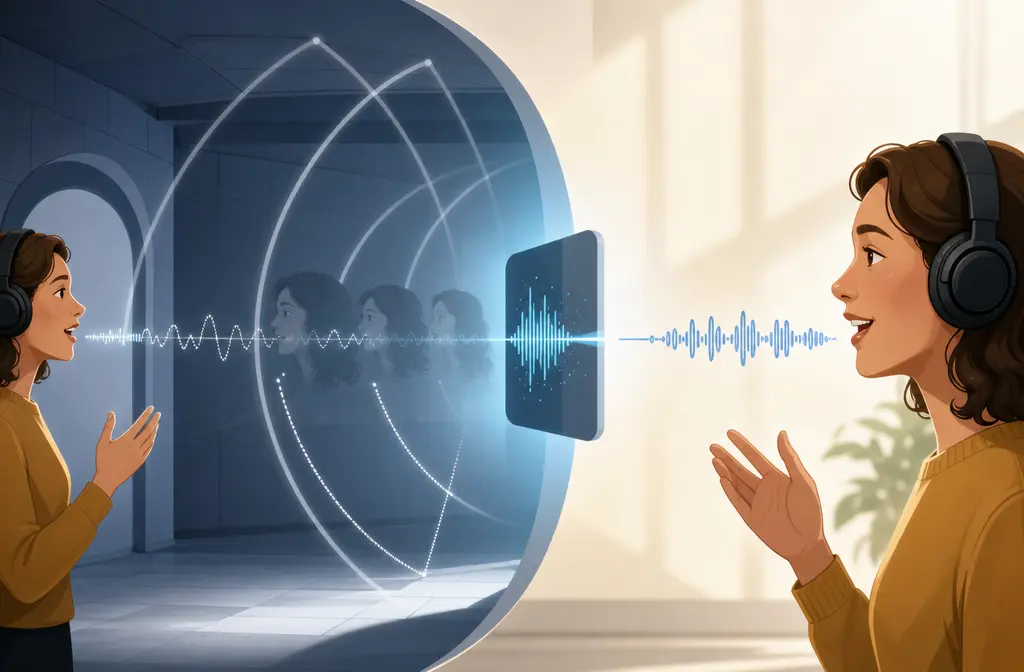
How to Remove Echo in DaVinci Resolve Without Wrecking Voice Clarity
Quick answer
If you need to remove echo in DaVinci Resolve, the best first pass depends on how severe the problem is:
- Mild roominess: In DaVinci Resolve Studio, start with Voice Isolation, then do light EQ and gentle dynamics in Fairlight. Blackmagic lists Voice Isolation as a Studio feature in its DaVinci Resolve Studio feature page and documents it in the Fairlight Audio Guide.
- Room ambience that stays around the voice: In Studio, try Dialogue Separator after Voice Isolation. Blackmagic’s Resolve 19 New Features Guide describes Dialogue Separator as a way to rebalance dialogue, background, and ambience.
- Free version: Use manual Fairlight cleanup. In the supplied official sources, Blackmagic emphasizes Voice Isolation, Dialogue Leveler, and Dialogue Separator rather than a current built-in effect explicitly documented as “De-Reverb.”
- Severe echo: Resolve may improve it, but very reflective, distant, or damaged recordings often need an external cleanup step.
The key accuracy point is this: current Blackmagic materials in this brief emphasize Voice Isolation, Dialogue Leveler, and Dialogue Separator, not a native Resolve effect clearly documented in these sources as “De-Reverb.” That is why some tutorials do not match what you see in current versions.
Before you start: make sure it is actually echo
Many editors search for “echo removal” when the real issue is something else. If you diagnose the clip wrong, you can make speech sound worse.
- Room echo or reverb: The voice sounds hollow, distant, roomy, or like it was recorded in a hard-walled office or kitchen.
- Background noise: Fan noise, HVAC, traffic, computer hiss, or crowd wash under the speech.
- Hum: Low electrical buzz.
- Doubled audio: Two copies of the same voice slightly offset, often from camera audio and external mic audio both being active.
If the voice sounds doubled, mute the duplicate or fix sync first. Echo tools will not correctly solve two misaligned copies of the same dialogue.
Can DaVinci Resolve remove echo from audio?
Sometimes, yes. DaVinci Resolve can improve mild to moderate roomy dialogue, especially in DaVinci Resolve Studio. Official Blackmagic sources in this brief list AI Voice Isolation and Dialogue Separator as Studio features, and the Editors Guide documents Dialogue Leveler for dialogue workflows.
What Resolve does best here is speech cleanup, not miracle restoration. If the recording is very reverberant or the mic was too far away, aggressive processing can create watery, phasey, or robotic artifacts.

DaVinci Resolve echo removal: Free vs Studio
| Version | What you can do | Best for | Main limitation |
|---|---|---|---|
| Resolve Free | Manual Fairlight cleanup with EQ, dynamics, and level control | Mild roominess and basic dialogue polish | No one-click dereverb workflow documented in the supplied official sources |
| Resolve Studio | Voice Isolation, Dialogue Leveler, Dialogue Separator, plus Fairlight finishing | Interviews, courses, YouTube dialogue, speech-heavy edits | Dialogue Separator is presently mono-only |
Best Studio starting point: Voice Isolation first, then Dialogue Separator only if ambience is still the main issue, then finish with light Fairlight correction.
Best Free starting point: Aim for reduction, not total removal, and keep every move conservative.
Does DaVinci Resolve have a de-reverb effect?
Based on the supplied official Blackmagic sources, the safer answer is not to promise a current built-in Resolve effect explicitly documented as “De-Reverb.” In these sources, Blackmagic instead emphasizes:
- Voice Isolation in Studio
- Dialogue Leveler for dialogue consistency
- Dialogue Separator in newer Studio materials
That distinction matters because many search results blur together noise removal, speech isolation, room reverb reduction, and third-party dereverb plugins. This guide sticks to what the supplied Blackmagic documentation supports.
Fastest Studio workflow for room echo
If you have DaVinci Resolve Studio, this is the safest first-pass workflow for speech:
- Select the dialogue clip in the Edit page or Fairlight page.
- Open the Inspector.
- Enable Voice Isolation. Start low to moderate instead of pushing it immediately.
- Listen for the tradeoff: less room sound versus new artifacts like swishy consonants or a hollow tone.
- If ambience is still the main problem, try Dialogue Separator and reduce ambience or background while protecting intelligibility.
- Finish in Fairlight with small EQ corrections, conservative dynamics, and a final loudness check.
This order matters. If you heavily gate or EQ first, AI dialogue tools may have less natural material to work with.
Safe starting settings for speech cleanup
- Voice Isolation: Raise it only until the room sound pulls back without obvious artifacts.
- High-pass EQ: Remove low rumble gently so the voice does not turn thin.
- Boxiness cut: Use a small midrange dip only if the voice sounds closed-in or “inside a box.”
- Dynamics: Use light compression or leveling, not hard gating.
- Loudness check: Compare before and after at matched level so louder does not trick you into thinking it is cleaner.
Important limitation: Dialogue Separator is Studio-only and mono-only
Blackmagic’s Resolve 19 New Features Guide notes an important limitation: Dialogue Separator is presently mono-only.
If your clip is stereo, you have three practical options:
- Check whether the useful dialogue is really dual mono or mostly on one channel.
- Extract or convert the dialogue source to mono, process that mono dialogue, then rebuild your mix in the timeline.
- Skip Dialogue Separator and use Voice Isolation plus manual Fairlight cleanup if preserving stereo presentation matters more.
This is one reason some editors think Resolve “made the voice mono.” In practice, it is often a workflow issue tied to a mono-only tool.
How to reduce room echo in Fairlight
If you are using the Free version, or if Studio tools did not finish the job, Fairlight is where you can make dialogue sound more direct without wrecking clarity.
Recommended Fairlight cleanup chain for speech
- High-pass EQ first. Remove low-end buildup that makes the room feel larger.
- Cut boxiness lightly. A small mid cut can reduce the “conference room” tone.
- Use conservative dynamics. Stabilize speech without dragging room tone up between phrases.
- Avoid fake clarity moves. Do not boost highs aggressively just to make the track feel brighter.
- Check loudness at the end. Match levels before deciding the processed version is better.
This chain will not erase reverb, but it can make bad room sound less distracting.

Step-by-step: Free version workflow
- Open the Fairlight page and solo the dialogue track.
- Add EQ and engage a gentle high-pass filter to reduce rumble.
- Sweep for boxiness and make only a small cut where the room tone sounds worst.
- Add light dynamics so speech stays controlled without obvious pumping.
- Bypass and compare often. If the voice gets thinner, smaller, or harsher, back off.
- Finish with level matching for an honest before-and-after comparison.
This is the safest no-extra-cost workflow supported by the supplied material, but it is still a compromise compared with Studio’s speech tools.
What not to do
- Do not over-gate. Hard gates can make room tails more obvious and speech more choppy.
- Do not over-isolate. Too much Voice Isolation can create robotic or underwater artifacts.
- Do not stack too many AI fixes. Lighter processing usually sounds more natural.
- Do not boost highs to fake clarity. That often adds harshness without fixing the room problem.
- Do not ignore doubled audio. Fix duplicate tracks before any speech cleanup.
When Resolve is not enough
If the dialogue was recorded far from the mic, in a very reflective room, or across many clips that all need rescue, manual Fairlight work can become slow and inconsistent. In that case, exporting the dialogue for external cleanup may be faster. If you want that route, SimpleClean is another tool from our team that can be used after export as a one-click fallback for echo- and noise-heavy voice.
Troubleshooting
| Problem | Likely cause | What to do |
|---|---|---|
| Voice sounds robotic or underwater | Too much Voice Isolation or stacked AI processing | Reduce the amount, remove one stage, and compare again at matched loudness |
| Background pumps between words | Over-aggressive dynamics or gate-like behavior | Use lighter dynamics and avoid hard gating |
| Voice became mono | Mono-only dialogue separation workflow | Check whether the clip was converted, split, or processed as mono |
| Echo is still obvious | The room reverb is too strong for light correction | Lower expectations for in-timeline repair and consider an external cleanup pass |
| Music under dialogue breaks the cleanup | Speech tools are prioritizing voice inside mixed program audio | Work from isolated dialogue if possible, or use lighter settings |
FAQ
Can the free version of DaVinci Resolve remove echo?
It can reduce mild roominess with manual Fairlight EQ and dynamics, but the strongest AI dialogue-cleanup features in the supplied official Blackmagic sources are Studio-only.
Does Voice Isolation remove reverb?
It can reduce the sense of room around a voice, especially on mild or moderate clips, but it is better treated as speech-focused cleanup than as a guaranteed full dereverb replacement.
Is Voice Isolation in DaVinci Resolve Studio only?
Yes. In the supplied official sources, Blackmagic positions Voice Isolation as a DaVinci Resolve Studio feature.
Why did my audio turn mono after dialogue cleanup?
A common reason is using Dialogue Separator, which Blackmagic’s supplied Resolve 19 documentation describes as mono-only.
What is the best way to clean interview audio in DaVinci Resolve?
For Studio users: start with Voice Isolation, use Dialogue Separator only if ambience remains the main issue, then finish with light Fairlight EQ and dynamics. For Free users: stick to careful Fairlight cleanup and realistic expectations.
How do I reduce room echo in Fairlight without wrecking the voice?
Use a gentle high-pass filter, a small boxiness cut, and conservative dynamics. Compare often at matched loudness, and stop before the voice starts sounding thin, phasey, or harsh.
For version-specific details, Blackmagic’s Support Center is the best place to confirm current manuals and feature availability.