Quick Answer
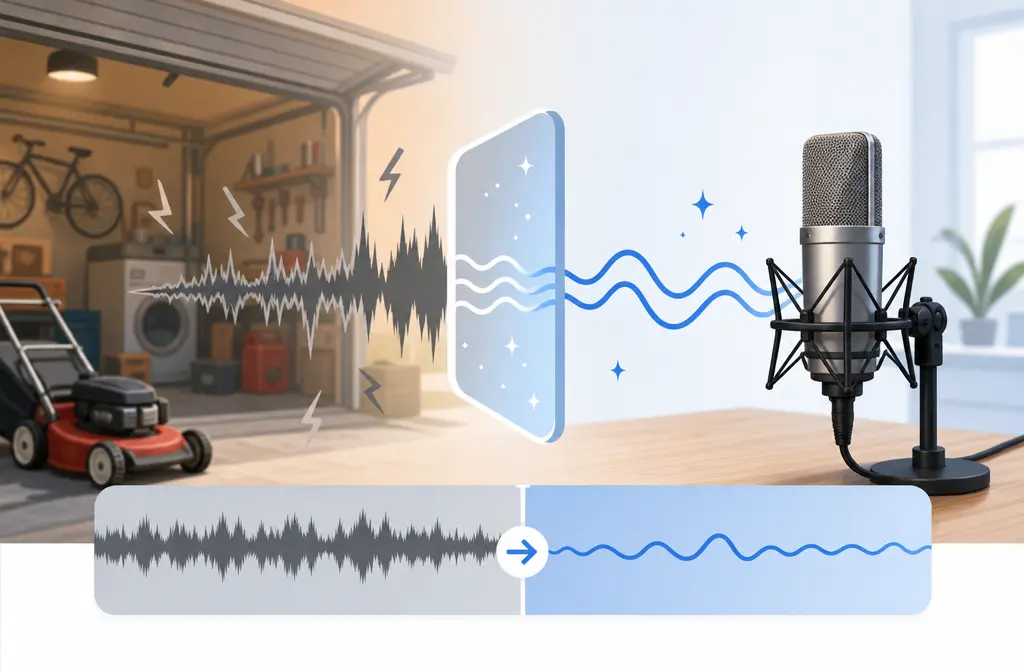
Yes, you can reduce some background noise in GarageBand, but mostly by using a noise gate, not full dialogue noise reduction. On Mac, Apple describes GarageBand’s Gate as a way to reduce unwanted low-level noise in silent passages. On iPhone and iPad, Apple says the Noise Gate cuts sound when it falls below a minimum level. In plain English: GarageBand can often help with light room tone, hiss, or low-level noise between phrases, but it usually will not remove hiss, fan noise, hum, or traffic that sits under your voice while you are speaking. If you push the gate too hard, it can chop off quiet syllables and word endings. Apple Support, GarageBand for iPhone User Guide
The safest GarageBand workflow is simple: duplicate the track, turn on the gate, raise it slowly, then test your softest words before committing. If your noise is still obvious during speech, export the file and clean it in a dedicated tool before bringing it back into GarageBand.

What GarageBand actually offers for background noise
If you searched for remove background noise in GarageBand, the most important thing to know is that GarageBand is not primarily built like a full audio-restoration app. For spoken-word editors, that distinction matters.
- On Mac: GarageBand gives you a Gate in track controls. Apple’s own explanation frames it around reducing unwanted low-level noise in silent passages. Apple Support
- On iPhone and iPad: GarageBand includes a Noise Gate in input settings while recording. Apple explains that it cuts sound below a minimum level. GarageBand for iPhone User Guide
- What it does not mean: GarageBand is not promising true built-in spectral denoise for constant noise under active speech in the sources provided here.
That is why people sometimes feel like the gate “works” on pauses but not on actual noisy dialogue. The gate is reacting to level. If the noise is mixed underneath your voice, the voice keeps the signal above the threshold, so the noise often stays audible too.
Best for: when GarageBand is enough vs when it is not
| Problem | Can GarageBand help? | Best workflow |
|---|---|---|
| Light hiss or room tone in pauses | Yes, often | Use Gate gently |
| Noise between phrases only | Yes, often | Gate on a duplicated track, test soft words |
| Steady fan noise under your voice | Usually not fully | Try light EQ plus gate, or export for dedicated cleanup |
| Hum under speech | Not reliably with gate alone | Try EQ if appropriate, otherwise export for cleanup |
| Wind noise | No, not realistically with a gate | Export for dedicated cleanup |
| Room echo | No, gate does not remove echo | Export for cleanup; if GarageBand itself added echo or reverb, remove that effect first |
| Clipped or distorted recording | No | You may improve it slightly elsewhere, but prevention matters most |
| Overlapping voices in background | No | Export for stronger cleanup; results vary |
If you only need to tidy the spaces between phrases, GarageBand may be enough. If the noise lives under the words themselves, plan for an export-and-clean workflow.
GarageBand on Mac: how to use the Gate safely
On Mac, start with the built-in Gate before you reach for anything more aggressive.
- Duplicate your track first. This gives you an easy before-and-after comparison and lets you back out if the gate starts swallowing words.
- Select the vocal track.
- Open Smart Controls. Apple’s GarageBand for Mac guide covers Smart Controls and track controls. GarageBand for Mac User Guide
- Find the Gate control for the track.
- Turn on Gate and start low. Do not jump straight to an aggressive setting.
- Play a section with natural pauses. Listen for whether the noise drops in the gaps.
- Test quiet words and soft syllables. Pay special attention to breathy starts, sentence endings, and low-volume phrases.
- Raise the threshold gradually only until the pauses improve.
- Compare against the duplicate track. If the gated version sounds cleaner but less natural, back off slightly.
Apple specifically recommends adjusting the Gate carefully: if it is set too high, soft notes can be cut off. The same principle applies to spoken words. Apple Support
How to stop the gate from cutting off quiet words
- Lower the gate threshold a little.
- Test on a phrase with quiet consonants and soft endings, not just loud speech.
- Listen to the start of words like “today,” “because,” or “support,” where the opening sound can disappear first.
- Use the gate mainly to clean gaps, not to force total silence.
- If noise is still obvious during speech, stop pushing the gate. That is the point where export-based cleanup is safer.
This is the core tradeoff: more threshold can mean less noise in pauses, but also more risk of chopped speech.
Important Mac recording setting: Mic Mode should be Standard
If you are recording directly into GarageBand on Mac, Apple says to check Mic Mode and set it to Standard for creative apps like GarageBand and Logic Pro. Apple Support: Check Mic Mode on Mac
Why this matters: if Mic Mode is doing extra processing, you may get results that confuse your editing decisions. Before you judge the gate, make sure the recording path itself is behaving normally.
- Open Control Center on your Mac while GarageBand is in use.
- Open Mic Mode.
- Choose Standard.
That is especially worth checking when a recording sounds unexpectedly processed or inconsistent.

GarageBand on iPhone and iPad: where the Noise Gate is
On iPhone and iPad, the workflow is a little different because Apple surfaces the Noise Gate in input settings while recording.
- Open your recorder track in GarageBand.
- Open Input Settings.
- Turn on Noise Gate.
- Set your input level carefully. Apple’s guide notes that if the input level is set too high, the sound may be distorted. If the level meter turns red, reduce the input level. GarageBand for iPhone User Guide
- Record a short test. Speak both loudly and quietly.
- Listen back for clipped words. If quiet speech disappears, back off and re-test.
On mobile, the same rule applies as on Mac: a gate is most helpful for low-level noise when you are not speaking. It is much less effective against noise living under the voice itself.
Exporting from GarageBand on iPhone or iPad
If the built-in Noise Gate is not enough, export your project and clean the file elsewhere. Apple documents the Share workflow for GarageBand on iPhone, which lets you share a song as an audio file. Apple Support: Share songs with GarageBand for iPhone
That gives you a simple path: record in GarageBand, export the audio, clean it, then re-import if you still want to finish the edit in GarageBand.
What GarageBand can fix well, somewhat, or poorly
Usually worth trying inside GarageBand
- Light room tone in pauses
- Mild hiss that is mainly noticeable between phrases
- Cleaner transitions between spoken lines
Sometimes partially improved
- Steady low-level noise where a gentle gate plus careful EQ may help a bit
- Minor low-frequency buildup that is making the background feel heavier than it is
Usually not solved by GarageBand alone
- Fan noise under your speaking voice
- Hum under active dialogue
- Traffic noise under speech
- Wind noise
- Room echo
- Clipping or distortion
- Background voices overlapping with your voice
This lines up with the spoken-word limitation framing in Hilite’s GarageBand guide: GarageBand is useful, but it is not the strongest tool for deep voice cleanup. Hilite
Safe workflow by problem type
If you are not sure whether to keep working in GarageBand or export, use this rule of thumb:
- Gate only: Use this when the problem is mostly noise in gaps between spoken phrases.
- EQ + gate: Use this when the noise is mild and you can reduce some low-end or harshness without damaging the voice. Keep expectations modest.
- Export for dedicated cleanup: Use this when the noise stays audible while you are speaking, or when pushing the gate starts chopping your words.
If you want an extra cleanup step after exporting, you can try SimpleClean, another tool from our team, then bring the cleaned file back into GarageBand for final edits.
When to export and clean elsewhere
Exporting is usually the right move when any of these are true:
- You still hear the noise clearly during speech.
- Raising the gate enough to hide the noise makes your words sound chopped.
- The recording has multiple problems at once, like hum plus fan noise plus echo.
- You need a more polished podcast or voiceover result than a basic gate can provide.
A clean workflow looks like this:
- Do your basic trims in GarageBand.
- Export the audio file.
- Run cleanup in a dedicated tool.
- Listen for artifacts before overprocessing.
- Re-import into GarageBand for arrangement, music, and final export.
Troubleshooting
The gate is not doing much
- The noise may be too loud to count as low-level background noise.
- The noise may be living under the voice rather than only in pauses.
- Try a short test section with more obvious silent gaps.
GarageBand cuts off the start of my words
- Lower the threshold.
- Re-test using your quietest phrase, not your loudest one.
- Use less gating and accept a little natural room tone if needed.
Noise is still audible during speech
- That is a common sign that the gate has reached its limit.
- Try light EQ only if the problem is mild.
- Otherwise export for dedicated cleanup.
The recording is already distorted
- A gate will not repair clipping.
- On iPhone and iPad, Apple warns that high input levels can distort, especially if the meter goes red. Lower the input level on future takes. GarageBand for iPhone User Guide
GarageBand noise gate vs true noise reduction
For searchers comparing terms, here is the honest version:
- Noise gate: Turns down or cuts audio when the signal drops below a threshold. Best for noise in pauses.
- True noise reduction: Designed to reduce unwanted sound even when speech is present, depending on the tool and the type of noise.
Based on the Apple sources provided for this article, GarageBand’s native answer is the gate-first approach. That is helpful, but it is not the same thing as advanced dialogue restoration.
Final recommendation
If your GarageBand recording only has mild background noise in the spaces between words, start with the built-in gate and adjust it gently. On Mac, keep Mic Mode set to Standard while recording. On iPhone and iPad, watch your input level so it does not distort. But if the noise stays present while you talk, or the gate starts eating quiet words, do not keep pushing it. Export the file, clean it separately, and re-import the result.
That approach is slower than flipping one switch, but it is the safest way to get cleaner spoken-word audio without wrecking natural voice clarity.