Quick Answer
You can reduce some background noise in GarageBand, but GarageBand does not offer full dialogue restoration inside the app. Its built-in Noise Gate mainly turns down low-level sound when the signal drops below a threshold, which is most helpful for noise between phrases, not noise that sits under your voice while you are speaking. Apple’s own guidance describes Noise Gate as a way to reduce noise in silent passages on a track, not as a one-click fix for noisy dialogue (Apple Support).
So the short version is this:
- Use GarageBand’s Noise Gate if your main problem is light room tone, low hum, or computer noise in pauses.
- Do not expect GarageBand alone to remove fan noise, AC noise, wind, echo, or nearby voices during spoken phrases.
- If the noise is under the voice and you need natural-sounding speech, export the audio, use SimpleClean—another tool from our team—to clean spoken-word audio, then re-import it into GarageBand for editing and final mix.
This article shows the exact Mac and iPhone steps, explains why Noise Gate often seems like it is “not working,” and helps you decide when GarageBand is enough versus when a separate cleanup workflow is faster.
What GarageBand can fix vs. what it cannot
| Noise problem | Can GarageBand help? | Best approach |
|---|---|---|
| Light room tone in silent gaps | Yes, sometimes | Use Noise Gate conservatively |
| Low hum or hiss between phrases | Yes, somewhat | Noise Gate first, then light EQ or manual edits if needed |
| Fan or AC noise under speech | Limited | GarageBand gate will not remove it while you talk; export and clean separately |
| Handling noise only in pauses | Yes | Gate and manual cutting can help |
| Wind noise | No practical built-in fix | Export and use a dedicated cleanup tool |
| Room echo or reverb | No true dereverb tool | Export and clean elsewhere if intelligibility matters |
| Nearby voices bleeding into the mic | Very limited | GarageBand is not designed to isolate one speaker from another |
| Noisy imported podcast/interview audio | Partly | Basic gating may help pauses, but spoken sections usually need external cleanup |
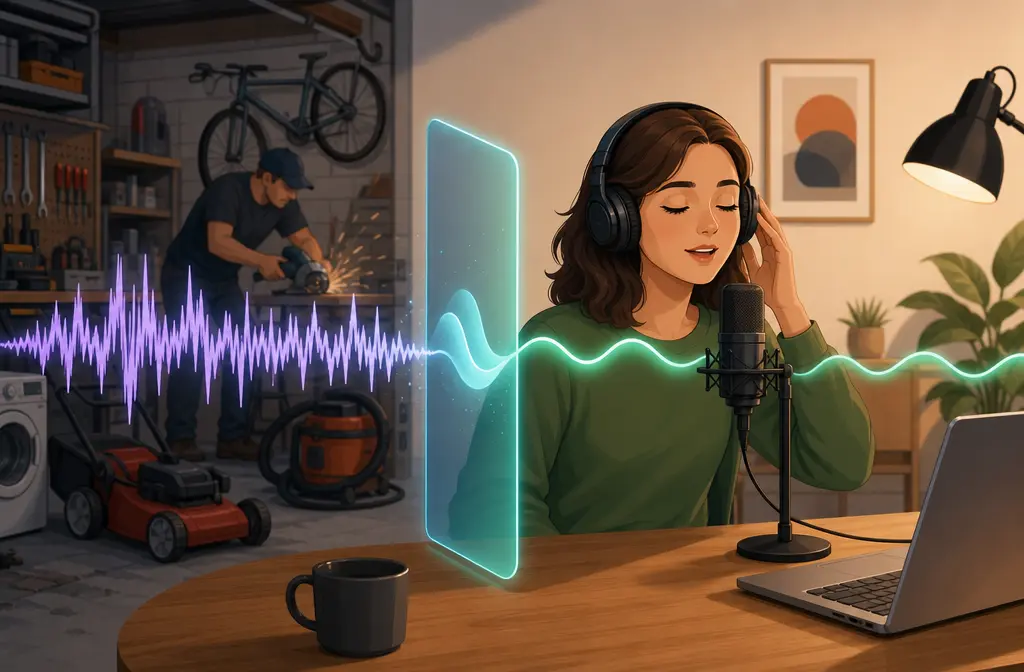
The key misunderstanding is that a noise gate is not the same thing as noise reduction. A gate does not “scrub” background noise out of your spoken words. It opens when your voice gets loud enough and closes when the level drops. That is why a recording can sound cleaner in pauses but still noisy during sentences.

How to use Noise Gate in GarageBand on Mac
For Mac users, the official GarageBand workflow is simple: select the track, open Smart Controls, then turn on and adjust Noise Gate (Apple Support). Apple’s GarageBand for Mac guide is also the canonical reference for current terminology and navigation (GarageBand User Guide for Mac).
- Select the track that contains the voice recording.
- Open Smart Controls. In many GarageBand setups, the shortcut is B.
- Find the Noise Gate control in the track controls.
- Enable Noise Gate.
- Solo the track so you can hear the voice clearly without the rest of the project masking the effect.
- Raise the gate only until pauses sound cleaner.
- Stop as soon as words start getting clipped, breath tails disappear unnaturally, or the track sounds choppy.
Best practice: adjust the gate while listening to the quiet ends of real phrases, not just total silence. That is where over-gating usually reveals itself.
Mac settings that usually work best for spoken word
- Start with a conservative setting. The goal is to reduce noise in gaps, not to force every quiet syllable above the threshold.
- If your voice has soft starts, leave more headroom. Aggressive gating can cut off consonants and make speech sound unnatural.
- Use manual edits for obvious empty sections instead of pushing the gate too far.
- Only try light EQ after gating if there is a narrow hum or some dull rumble you can reduce without damaging the voice.
If you need deeper troubleshooting, see GarageBand Noise Gate Not Working.
How to reduce background noise in GarageBand on iPhone
On iPhone, the workflow is different. Apple’s Audio Recorder includes input settings, and Noise Gate is available there for recording. This is more of a recording-stage control than a full repair tool (Apple Support).
- Open GarageBand for iPhone.
- Choose Audio Recorder.
- Open Input Settings.
- Turn on Noise Gate.
- Check your input level before recording.
- Record a short test and listen back before doing the full take.
For iPhone users, input level matters a lot. If you record too quietly, the voice can sit closer to the noise floor, making cleanup harder later. If you record too hot, you risk distortion. Apple’s iPhone guidance specifically supports checking levels before you start (Apple Support).
iPhone tips that make the gate more useful
- Record in the quietest room you can manage.
- Keep the phone or mic close enough to the speaker to capture a strong vocal signal.
- Do a short test with normal speaking volume, not a whisper or a shout.
- Use the gate to tidy pauses, not to “fix” constant background noise under the voice.
Why your GarageBand track still sounds noisy
If you turned on Noise Gate and the file still sounds noisy, that usually does not mean GarageBand is broken. It usually means the type of noise is outside what a gate can solve.
Here is what is happening:
- When you speak, the gate opens. If the fan, AC, or room noise is present under your voice, it comes through too.
- If you raise the threshold too far, the voice gets chopped. The pauses may sound cleaner, but word beginnings and endings can get clipped.
- Some noises are tonal or constant. A gate only hides them in gaps; it does not remove them from the voice itself.
- Echo is a room problem, not a gate problem. GarageBand does not include a true dereverb tool for spoken-word restoration.
This is why many creators waste time over-tweaking GarageBand. If the real issue is noise during the dialogue, more gate is rarely the answer.
Best supporting tweaks before you give up on GarageBand
If the recording is only mildly noisy, a few supporting tweaks can help without overprocessing.
1. Lower input gain before recording
Apple’s iPhone Audio Recorder guidance emphasizes checking input level before recording (Apple Support). In practice, good gain staging matters on Mac too: capture a healthy vocal signal without clipping. A stronger, cleaner voice recording gives the gate more to work with.
2. Keep Mic Mode on Standard on Mac
Apple specifically advises using Standard Mic Mode when recording creative audio in Logic Pro or GarageBand on Mac (Apple Support). Voice-processing modes can change the sound in ways that are unhelpful for music or production work, and stacking system-level voice processing with GarageBand adjustments can produce confusing results.
3. Avoid stacking voice-processing modes
If you recorded with one kind of voice isolation elsewhere, then add gating and other processing in GarageBand, the result can become more artificial. Keep the chain simple when possible.
4. Check third-party Audio Units if GarageBand behaves oddly
If you use plug-ins and the app starts acting strangely, Apple’s Audio Units documentation is useful for basic troubleshooting around installed plug-ins on Mac (Apple Support). Conflicting or misbehaving plug-ins can make it harder to tell whether the problem is really GarageBand’s gate or something else in the signal chain.
5. Manually cut obvious dead air
For spoken-word sessions, basic editing can outperform aggressive gating. Educational editing guides from Berkeley and UNB support simple spoken-word cleanup habits like trimming, arranging, and tidying tracks (Berkeley Advanced Media Institute) and (UNB Libraries). If a section contains no speech at all, cutting or reducing it manually is often cleaner than pushing the gate harder.

When GarageBand is enough, and when to export the file
GarageBand is usually enough for:
- Light room tone between phrases
- Mild low-level noise in pauses
- Simple solo voice recordings that are mostly clean already
- Quick edits where perfect restoration is not necessary
Export and clean elsewhere when you hear:
- Fan or AC noise under the voice
- Wind noise
- Room echo or reverb
- Nearby people bleeding into the recording
- Noisy interviews where speech clarity matters more than fast in-app editing
- Imported dialogue that already sounds rough before you even start mixing
If that sounds like your situation, the faster workflow is usually: export the cleanest source file you can, remove the noise outside GarageBand, then bring it back for editing.
Better cleanup workflow for podcasters, voiceovers, and interviews
Here is the honest workflow many speech creators end up using:
- Record or edit in GarageBand as usual.
- Export the voice track as WAV or AIFF for best quality before cleanup.
- Use SimpleClean to remove background noise from GarageBand recordings, if the problem sits under the voice, involves wind, or needs more than a simple gate. SimpleClean is another tool from our team.
- Re-import the cleaned file into GarageBand.
- Finish your edits, music, fades, and final mix in GarageBand.
This approach keeps GarageBand in the role it handles well: arranging, editing, and mixing. It avoids the common trap of trying to force a noise gate to do restoration work it was not built to do.
Best-for recommendations
| If you are... | Best option | Why |
|---|---|---|
| Recording a mostly clean solo podcast on Mac | GarageBand Noise Gate first | Fast and usually enough for mild noise in pauses |
| Recording on iPhone in a reasonably quiet room | Use Audio Recorder input settings and Noise Gate | Good for simple mobile capture if the source is already clean |
| Editing an imported interview with AC noise during speech | Export and clean separately | A gate will not remove constant noise under active dialogue |
| Trying to fix wind or echo | Export and use a dedicated cleanup workflow | GarageBand does not provide true wind removal or dereverb for speech repair |
| Hearing static or unusual artifacts | Troubleshoot recording chain first | The problem may be gain, device, or setup related rather than ordinary room noise |
If your issue is specifically crackle or interference rather than normal room noise, read GarageBand Static Noise.
Should you clean audio before or after editing in GarageBand?
For spoken-word projects, the cleanest workflow is often to do basic trims first, then export the voice audio for cleanup if needed, then re-import for final editing and mix decisions. That keeps you from cleaning long sections of silence or alternate takes you will not even use.
If the recording is only mildly noisy, you can stay inside GarageBand. If it is obviously compromised, external cleanup earlier in the process often saves time.
FAQ
Does GarageBand have noise reduction?
GarageBand has a built-in Noise Gate, which can reduce low-level noise in silent passages. Based on Apple’s documentation, it is not the same as full-spectrum dialogue noise reduction or restoration (Apple Support).
How do I remove hiss or static in GarageBand?
For light hiss in pauses, try Noise Gate conservatively. For static, persistent hiss under speech, or hardware-like noise, GarageBand may not be enough. First check your recording setup and gain staging, then consider exporting the file for dedicated cleanup.
Why is GarageBand Noise Gate not working?
Usually because the noise is happening while the voice is active. A gate opens when you speak, so the background noise comes through with the speech. Another common problem is setting the threshold too aggressively and causing choppy cut-ins.
Can GarageBand remove echo or reverb?
Not in the way most people mean. GarageBand can help shape audio, but it does not provide a true spoken-word dereverb workflow for repairing echoey room recordings.
Is background-noise removal different on iPhone?
Yes. On iPhone, you access Noise Gate through Audio Recorder input settings when recording (Apple Support). On Mac, you adjust Noise Gate on the track through Smart Controls (Apple Support). In both cases, the same limitation applies: the gate mainly helps in quieter gaps, not under active speech.
Bottom line
If you need to remove background noise in GarageBand, start with the built-in Noise Gate only when the problem is mostly in pauses. Keep the setting light, listen for choppy cutoffs, and do not expect it to restore noisy dialogue.
For podcasters, voiceover creators, and interview editors, the honest dividing line is simple: GarageBand can tidy gaps, but it cannot fully rescue every noisy voice recording. When the noise sits under speech, the faster path is to export a high-quality file, use SimpleClean for GarageBand voice cleanup—another tool from our team—and bring the result back into GarageBand for the rest of your edit.