Quick Answer
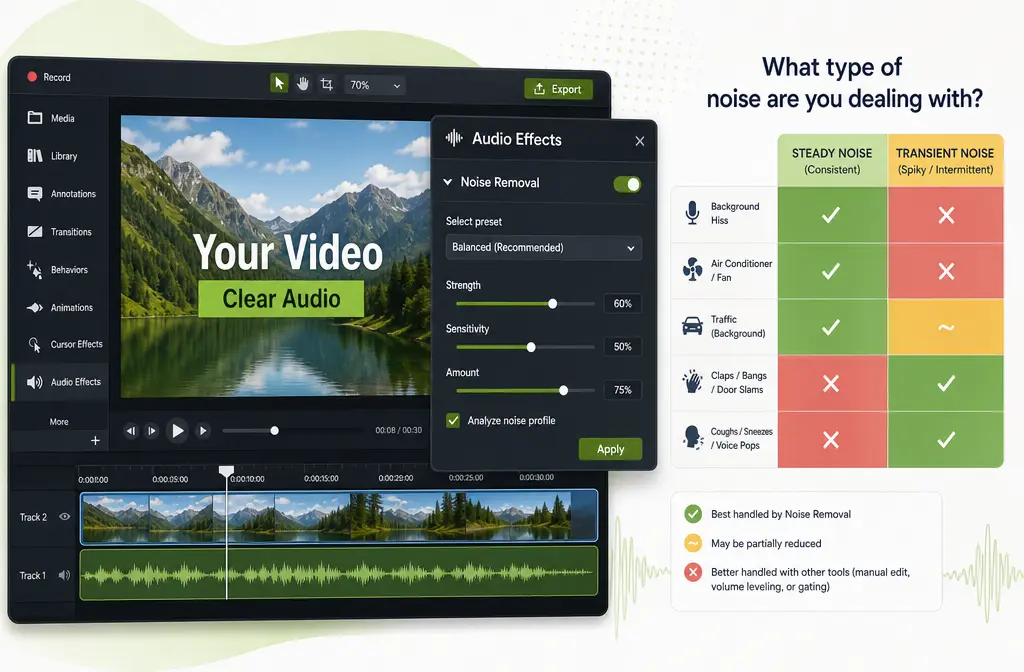
Yes, Camtasia can remove some background noise after recording, including from imported video files. It works best on steady, subtle noise like fan sound, hiss, static, or electrical hum. It is not a strong fix for short, changing sounds like keyboard clicks, barking dogs, traffic bursts, door slams, or construction noise.
The safest workflow is simple: select your clip, open Audio Effects, drag Noise Removal onto the clip or track, and test the default settings first before pushing the controls harder. On Windows, Camtasia includes an Analyze option. On Mac, you manually tune Reduction. If your voice starts sounding thin, metallic, robotic, or inconsistent, back off the settings and compare on a short speech-heavy section.
Where Noise Removal Lives in Camtasia
- Select the clip on the timeline.
- Open the Audio Effects panel.
- Drag Noise Removal onto the clip or track.
- Listen before changing anything.
That basic workflow applies whether the audio came from a native Camtasia recording or from an imported file such as an MP4 from Zoom, a webinar platform, or another screen recorder.
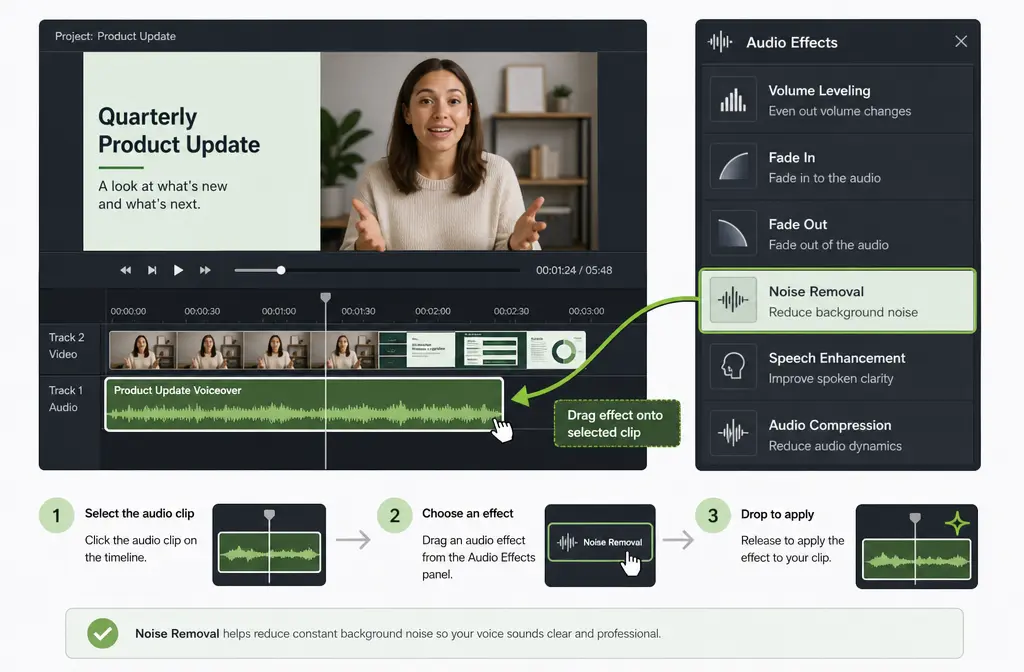
That matters because Camtasia can clean imported media in the editor, not only recordings made inside the app.
Windows vs. Mac: What Is Different?
The biggest practical difference in TechSmith’s current support documentation is that Analyze is Windows-only. Mac users instead adjust the cleanup manually.
| Feature area | Windows | Mac |
|---|---|---|
| Apply Noise Removal | Drag effect from Audio Effects onto clip or track | Drag effect from Audio Effects onto clip or track |
| Auto analysis option | Yes, Analyze | No equivalent Analyze step shown in the cited support doc |
| Main manual control mentioned | Amount plus sensitivity-related tuning | Reduction |
| Best practice | Start with defaults, then make small changes | Start with defaults, then make small changes |
If you are following an older tutorial and the controls do not look identical, your Camtasia version may differ. TechSmith’s Camtasia Mac 2025 version history notes improved AI Noise Removal effectiveness at the beginning of audio clips in version 2025.2.2, so results can vary by version.
The Safe Workflow: Remove Noise Without Crushing Speech
The most common mistake is treating denoise like a volume slider: more must be better. Usually it is not. TechSmith warns that aggressive settings can distort voice, so the safest approach is to see whether Camtasia helps at default settings before leaning on the controls.
- Pick a short, voice-heavy test section. Choose 10 to 20 seconds where you talk continuously and the noise is easy to hear.
- Apply Noise Removal and leave defaults alone first. Listen for whether the steady background sound drops while the voice stays natural.
- Only then adjust manually. On Windows, review the analyzed result and fine-tune Amount or sensitivity-related controls. On Mac, make small changes to Reduction.
- Stop at the first sign of damage. If consonants lose detail, room tone pumps in and out, or the voice turns metallic, back off.
- Compare before and after. Loop the same sentence a few times so you can hear the tradeoff clearly.
- Apply other audio processing carefully. TechSmith’s feature guidance says to apply noise removal before other audio effects.
Good signs
- Fan or hiss drops noticeably.
- Your voice still sounds like the same microphone.
- Background tone feels lower, not unnaturally erased.
Bad signs
- Speech sounds robotic, phasey, or metallic.
- Words fade in and out with the noise.
- S sounds, T sounds, and breaths get shredded.
- The audio becomes inconsistent from one phrase to the next.
What Camtasia Removes Well, and What It Usually Does Not
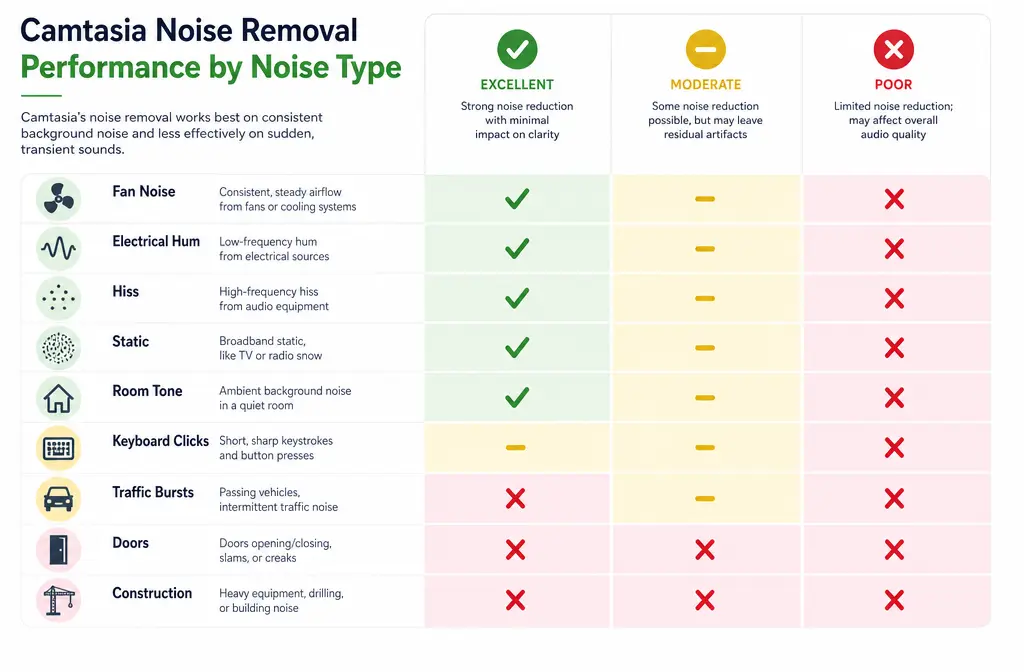
Camtasia is most useful when the noise is consistent. It is much less effective when the noise is transient, meaning short, irregular, or constantly changing.
| Noise type | How Camtasia usually performs | Best move |
|---|---|---|
| Fan noise | Good candidate | Try defaults first, then small adjustments |
| Static or hiss | Good candidate | Use light-to-moderate cleanup |
| Electrical hum | Good candidate | Test carefully on spoken sections |
| Light room tone | Often workable | Use conservative settings |
| Keyboard clicks | Poor candidate, especially during speech | Expect limited improvement |
| Traffic bursts | Poor candidate | Use another cleanup step if distracting |
| Doors, bumps, slams | Poor candidate | Manual edit or stronger repair workflow |
| Construction noise | Poor candidate | Do not expect clean recovery in-editor |
This matches TechSmith’s best-practices guidance: subtle, steady noise is where noise removal works best; sharp or unpredictable sounds are where it struggles.
Can Camtasia Clean Imported MP4s, Zoom Calls, and Webinar Recordings?
Yes. TechSmith’s blog and product materials indicate that noise removal is not limited to recordings created inside Camtasia. You can import media and apply Noise Removal in the editor.
That makes Camtasia a reasonable first pass for Zoom exports, webinar recordings, interview MP4s, screen recordings captured elsewhere, and voiceovers recorded outside Camtasia.
Just keep expectations realistic: if the file has mild steady noise, Camtasia may be enough. If it has echo, changing background noise, clipped audio, or lots of interruptions, you may get better results by exporting the audio or video and using a stronger spoken-word cleanup workflow afterward.
Troubleshooting Common Camtasia Noise Removal Problems
Why does my voice sound distorted or robotic?
The most likely reason is that the cleanup is too aggressive for the recording. TechSmith notes that overly strong settings can distort voice. Roll the effect back and retest on a short voice-heavy section.
Why did the noise seem to come back after level changes?
TechSmith advises applying noise removal before other audio effects. If you change levels or add later processing, the remaining noise may become more noticeable again. Recheck the processing order and compare against the original test section.
Why will keyboard clicks not disappear while I am speaking?
Because keyboard clicks are a poor fit for this kind of cleanup. TechSmith’s best-practices guidance says transient noises are weak candidates. When the click overlaps with your voice, Camtasia usually cannot suppress the click fully without also harming speech.
Why does the start of my clip sound different from the rest?
Version can matter. TechSmith’s Camtasia Mac 2025.2.2 notes specifically mention improved AI Noise Removal effectiveness at the beginning of audio clips.
Why is construction or street noise still obvious?
Because those sounds are not steady background hiss or hum. They change constantly and often overlap with speech, which is exactly the kind of material TechSmith says noise removal handles poorly.
When to Export and Use a Stronger Cleanup Tool
There is a point where more denoise stops helping and starts damaging speech. If your voice is getting thin, metallic, or inconsistent, that is the time to stop increasing the effect.
- Try Camtasia’s Noise Removal on a short test section.
- Keep the result only if the voice still sounds natural.
- If not, export the audio or video.
- Run dedicated cleanup outside Camtasia.
- Bring the cleaned result back into the edit if needed.
If you need that second-stage option, SimpleClean is another tool from our team that you can use on exported Camtasia audio or video when the built-in effect is not enough.
Privacy and AI Processing
According to TechSmith’s third-party AI disclosure, Camtasia’s noise removal uses DeepFilterNet and is processed on device. TechSmith also states that user data is not used for training. For teams handling internal training videos, product walkthroughs, or company webinars, that is a useful trust detail.
Sources
- TechSmith Support: How to Remove Background Noise in Camtasia Editor(Video)
- TechSmith Support: Noise Removal Best Practices
- TechSmith Blog: Removing Background Noise From Audio
- TechSmith Feature Page: Remove Background Noise from Video
- TechSmith Support: Third-Party AI Technology Used in TechSmith Products
- TechSmith Support: Camtasia Mac 2025 Version History
FAQs
Can Camtasia remove background noise from an imported MP4?
Yes. TechSmith’s materials indicate you can import existing media and apply Noise Removal inside Camtasia.
Where is Noise Removal in Camtasia?
Select the clip, open Audio Effects, and drag Noise Removal onto the clip or track.
Why does Camtasia noise removal make my voice sound robotic?
Usually because the settings are too aggressive for the recording. Reduce the effect and compare on a short spoken section.
Does Camtasia remove keyboard clicks or barking dogs?
Not reliably. TechSmith’s best-practices guidance says transient noises are poor candidates for this tool, especially when they overlap with speech.
What is the difference between Camtasia Noise Removal on Windows and Mac?
In the current support documentation, Windows includes Analyze. Mac users manually tune Reduction. The core drag-and-drop workflow is the same.
Can Camtasia clean Zoom or webinar recordings?
Yes. Imported Zoom and webinar exports can be cleaned in the editor, with best results on steady noise rather than changing or intermittent sounds.
Is Camtasia noise removal processed in the cloud or on device?
TechSmith says it is processed on device using DeepFilterNet, and that user data is not used for training.