Quick Answer
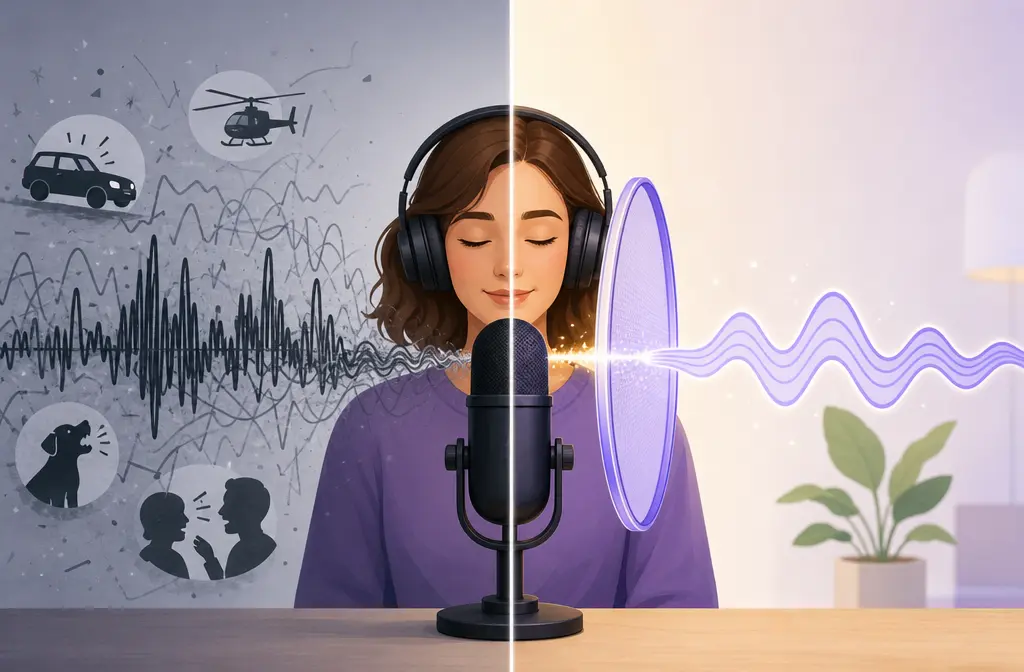
Yes, Adobe Podcast can remove background noise from spoken-word recordings surprisingly well, especially steady problems like hiss, fan noise, HVAC, room tone, and some mild echo. The catch is that Adobe Podcast Enhance Speech is not a transparent restoration tool in the traditional sense. It can rebuild speech quite aggressively, which is why pushing it too hard can make your voice sound plasticky, robotic, or unnaturally smooth.
If you want the safest workflow, test a short section first, keep your original file, use less processing than you think you need, and judge the result by intelligibility and naturalness rather than perfect silence.
When Adobe Podcast Works Well, and When It Doesn't
For spoken recordings, Adobe Podcast is best thought of as a fast rescue tool, not a miracle fixer for every bad recording.
| Problem type | How Adobe Podcast usually does | What to expect |
|---|---|---|
| Fan noise, HVAC, steady room noise, hiss | Usually good | Often a strong fit for spoken voice |
| Mild echo or roomy sound | Sometimes helpful | Can improve clarity, but may also sound processed |
| Single-speaker podcast or voiceover | Usually good | Best use case for Enhance Speech |
| Overlapping speakers | Weak | Harder for speech-focused cleanup to separate cleanly |
| Severe reverb | Weak to mixed | May reduce it a bit, but often leaves artifacts |
| Loud background music | Poor | Not a realistic expectation for clean dialogue recovery |
| Clipping or distortion | Poor | Cannot reliably restore damaged peaks |
| Badly compressed phone audio | Mixed | Can become more intelligible, but may sound synthetic fast |
This matches Adobe's caveat that results depend on speaker audibility and background noise, and that clearer inputs produce better outputs.

Enhance Speech vs. Studio: Which One Should You Use?
If your goal is specifically removing background noise from an existing file, Enhance Speech is the main feature to know.
- Enhance Speech is the direct cleanup workflow for uploaded audio, and on paid plans it can also work with video.
- Studio is Adobe Podcast's browser-based recording and editing environment. It is useful if your project already lives there, but it is not the main reason most people reach for Adobe when they need to rescue a noisy file fast.
For most creators asking, “Can Adobe Podcast remove background noise from this recording?” the answer lives in Enhance Speech, not in Studio.
Adobe Podcast Limits That Matter Before You Start
Adobe's plan limits change what workflow is practical, so check these before you commit.
- Free Enhance Speech: audio only, one file at a time, no strength adjustment, up to 30 minutes per file, up to 500 MB, and up to 1 hour per day.
- Firefly Pro: adds video support, bulk upload, adjustment controls, up to 2 hours per file, up to 1 GB, and up to 4 hours per day.
Adobe also lists supported browser and format requirements on its technical requirements page, and says Enhance Speech accepts common audio and video formats and returns the same format on download. If you are cleaning a long interview, a video file, or multiple takes, these limits matter more than the denoise quality itself.
Best for by plan
- Free plan: quick rescue of a short spoken recording when you mainly need better clarity.
- Paid plan: longer sessions, video audio cleanup, batch-style workflows, and situations where you need adjustable speech and background controls.
Step-by-Step: Remove Background Noise in Adobe Podcast Safely
This workflow gives you the best chance of cleaner speech without the fake AI voice problem.
- Duplicate and save your original file. Do not overwrite it.
- Check your file length, size, and format. Make sure your file fits your plan and Adobe's supported formats.
- Start with a short test clip if possible. Use a representative section with actual noise, not just a clean sentence at the beginning.
- Upload to Enhance Speech. If you are on the free plan, expect a simpler one-file workflow. If you are on Firefly Pro, you may have access to adjustable speech and background controls.
- Listen for voice realism first. Ignore the initial wow factor and ask whether consonants, breaths, and room cues still sound human.
- Back off if the voice sounds rebuilt. If you have adjustable controls available, use a more moderate setting. If you do not, compare the Adobe version against the original and decide whether the clarity gain is worth the tradeoff.
- Judge success by intelligibility, not total silence. Some light background ambience is often better than a hollow, synthetic voice.
- Export only after comparing before and after. Bring the chosen version into your editor or DAW once you are sure the cleanup helped.
Best First Settings and Habits to Avoid the “Fake AI Voice” Sound
The exact controls depend on your plan, but the judgment rules are consistent.
Start here
- Use the shortest realistic test first.
- Prefer moderate enhancement over maximum cleanup.
- Process before your final EQ, compression, and loudness work.
- Compare on headphones and speakers if you can.
What to listen for
- Good signs: words are easier to understand, noise draws less attention, the speaker still sounds like themselves.
- Bad signs: the voice becomes papery, phasey, glossy, overly intimate, or weirdly detached from the room.
- Red flag: sibilants, breaths, and word endings sound “reconstructed” instead of recorded.
A common mistake is optimizing for silence instead of speech. That usually leads to the fake result. For spoken word, the better target is a voice that is easier to follow, even if a little ambience remains.

What Adobe Podcast Usually Handles Well
- Steady fan noise
- HVAC or air-conditioner wash
- Low-level hiss
- Light room tone
- Mildly boxy or echoey spoken audio
- Single-speaker recordings that need a fast clarity boost
This is why Adobe Podcast is popular with podcasters, YouTubers, course creators, and freelancers who need quick spoken-word cleanup without opening a full restoration chain.
What Adobe Podcast Handles Poorly
- Two people talking over each other
- Severe room reverb
- Loud music under speech
- Clipping and distortion
- Extremely noisy outdoor recordings
- Heavily compressed or already artifacted voice tracks
If your recording falls into one of those categories, the realistic goal is partial improvement, not studio-quality recovery.
How to Judge Before and After Correctly
Creators often choose the wrong version because the processed audio sounds cleaner for the first ten seconds. Then, after a full listen, it starts sounding synthetic and tiring.
Use this checklist:
- Can you understand the words more easily?
- Does the speaker still sound like the original person?
- Do breaths and pauses sound natural?
- Does the result stay believable over a full minute, not just one sentence?
- Would you rather hear a little room noise than the processed texture?
If the answer to the last question is yes, back off the processing or keep the original.
Troubleshooting Adobe Podcast Noise Removal
Upload fails or processing won't start
- Check that your browser is supported in Adobe's technical requirements.
- Make sure the file fits the plan's duration and size limits.
- Try a common supported format if your current file is unusual.
- Retry with a shorter test clip to rule out a limit or file-specific issue.
The file uploads, but the result is disappointing
- The voice may be too buried under the noise.
- The recording may contain overlapping speakers or loud music.
- The room echo may be too severe for a natural result.
- The original may already be distorted or heavily compressed.
The voice sounds robotic or fake
- Use less enhancement if your plan allows it.
- Choose a shorter section and compare more carefully.
- Accept a bit more background noise to preserve realism.
- Stop if cleanup is making the voice less believable.
Your video file is not working as expected
Check your plan first. Adobe's plans page says free Enhance Speech is audio-only, while Firefly Pro adds video support.
Adobe Podcast vs. Other Cleanup Approaches
| Approach | Best for | Main tradeoff |
|---|---|---|
| Adobe Podcast Enhance Speech | Fast spoken-word rescue | Can sound synthetic if pushed too far |
| Traditional DAW restoration | Detailed manual control | Slower and more technical |
| Gentler exported-file cleanup tool | Quick second opinion when Adobe sounds overprocessed | May remove less noise than aggressive speech rebuilding |
If you already work in Adobe's ecosystem and need a one-click spoken-audio rescue, Adobe Podcast makes sense. If your main problem is that Adobe cleans aggressively but changes the voice too much, a lighter workflow can be worth testing.
When to Switch to SimpleClean Instead
Adobe Podcast is a good first stop when you want the fastest possible speech cleanup. But there are a few moments when switching tools is sensible:
- You want a simpler exported-file workflow.
- You want a gentler result that keeps more of the original voice texture.
- Adobe makes the voice sound too polished or rebuilt.
- You want a second opinion before choosing the final cleaned version.
If that sounds like your situation, SimpleClean is another tool from our team that you can compare against your Adobe result.
Final Verdict
Adobe Podcast can remove background noise well enough for many spoken-word projects. It is especially useful for steady noise, quick podcast rescue, and creators who value speed. But the best results come from restraint: short test first, moderate processing, keep the original, and prioritize intelligibility over silence.
If the noise drops and the speaker still sounds real, Adobe worked. If the voice starts sounding rebuilt, stop early and compare alternatives rather than pushing harder.
FAQs
Is Adobe Podcast free for noise removal?
Adobe offers a free Enhance Speech workflow, but it has limits. According to Adobe's plans page, the free version is audio-only, one file at a time, with no strength adjustment, up to 30 minutes per file, up to 500 MB, and up to 1 hour per day.
Does Adobe Podcast remove echo too?
Sometimes. It can help with mild echo or roomy spoken audio, but severe reverb is a weaker use case. Expect better results on light room reflections than on a heavily echoing space.
Why does Adobe Podcast make my voice sound robotic?
Usually because the processing is too aggressive for the source. Adobe's speech enhancement can rebuild the voice strongly, especially when the original is noisy, reverberant, or already compressed. A lighter touch often sounds better.
What file types does Adobe Podcast Enhance Speech support?
Adobe's technical requirements page lists the accepted audio and video formats. Adobe also says Enhance Speech returns the same format on download, so check that page if you are troubleshooting a specific file type.
Can Adobe Podcast enhance video audio?
Yes, but plan level matters. Adobe's plans page says free Enhance Speech is audio-only, while Firefly Pro adds video support.
What is the difference between Adobe Podcast Studio and Enhance Speech?
Enhance Speech is the direct cleanup feature for uploaded recordings. Studio is Adobe Podcast's browser-based recording and editing environment. If your main goal is to remove background noise from an existing file, Enhance Speech is usually the relevant tool.