How to Remove Background Noise in Ableton Live: Gate vs EQ Eight vs External Editor, Best Order, and When to Clean the Exported File Online
If you are trying to remove background noise in Ableton Live, the most important thing to know is this: the right tool depends on the type of noise. Live can clean up a lot of spoken-word audio, but it does not include a simple one-click built-in broadband speech denoiser for all cases. In practice, that means you usually combine Gate and EQ Eight, sometimes try a mild stock workaround, and sometimes export a WAV for deeper cleanup in an external editor or online tool.
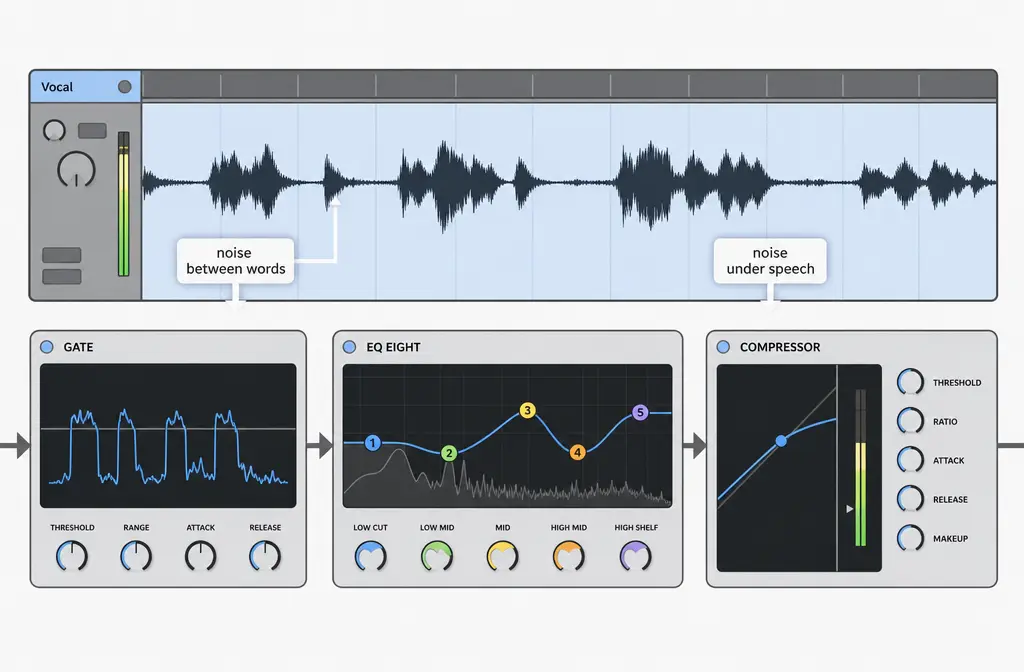
For podcasters, YouTubers, interview editors, and course creators, the biggest mistake is treating Gate like full noise reduction. It is not. Gate is best for noise in the gaps between words. If the fan, hiss, room tone, or hum is still audible under the voice, Gate alone will not solve it.
This guide shows the fastest decision tree, the best stock-device order for dialogue, and when it is smarter to clean exported voice recordings with SimpleClean instead of forcing more processing inside Live.
Quick Answer
- Use Gate when the noise is mainly audible between phrases.
- Use EQ Eight for fixed low rumble, steady hum fundamentals, and gentle high-frequency hiss control.
- Use stock workarounds carefully for mild ambience only; they are not true spoken-word denoisers.
- Use an external sample editor if you want destructive repair outside Live, such as Audacity noise reduction.
- Export a WAV and clean it online when noise overlaps speech, when the room is echoey, or when clicks/chatter/complex background noise keep surviving your Live chain.
Best order for dialogue in Ableton Live: cleanup first, then tonal EQ, then compression/limiting. If you compress before cleanup, you often make the background noise more obvious.
Does Ableton Live have noise reduction?
Not in the simple “single speech denoise button” sense many users expect. Ableton Live gives you tools that help with specific problems:
- Gate attenuates signal below a threshold, which is useful for closing down room noise between spoken phrases.
- EQ Eight gives you low-cut, notch, and high-cut filtering for rumble, hum, and some hiss shaping.
- External sample editing lets you send audio to another editor for destructive processing and then bring it back into your Live workflow.
- Bounce and commit options help you render your cleaned result once you like it.
What Live does not give you, based on the supplied documentation, is a dedicated built-in broadband voice denoiser that automatically removes complex background noise from under speech the way many AI cleanup tools do. That limitation matters because spoken-word editors often need more than gate-plus-EQ.
What Ableton can and cannot fix well
| Noise problem | What usually works in Live | What usually does not work well in Live alone |
|---|---|---|
| Noise between phrases | Gate | Expecting Gate to clean noise during speech |
| Low rumble / HVAC | EQ Eight low cut | Removing moving ambience without affecting voice tone |
| 50/60 Hz hum | EQ Eight notch at the fundamental, sometimes more than one notch if needed | Repairing severe electrical buzz cleanly without side effects |
| Light high-frequency hiss | Gentle high cut with EQ Eight | Heavy hiss removal without dulling consonants |
| Room tone under speech | Only mild improvement with stock tools | True transparent denoise inside Live alone |
| Echo / reverb | Very limited stock help | Fully de-reverbing speech cleanly |
| Keyboard clicks / chatter | Manual editing may help isolated events | Consistent repair when noise overlaps words |
| Clipping / distortion | Prevention and selective repair elsewhere | Restoring badly clipped speech with Gate or EQ |
If your recording problem sits in the right-hand column, it is often faster to export a WAV and use a dedicated cleanup workflow instead of building a bigger Live chain.
Noise diagnosis: match the symptom to the tool
| Symptom | Likely cause | Best first move |
|---|---|---|
| Soft hiss everywhere | Preamp noise, noisy room, device hiss | Gentle EQ Eight high cut; if still obvious during speech, export WAV for deeper cleanup |
| Air conditioner or fan rumble | Low-frequency constant noise | EQ Eight low cut first, then test Gate for pauses |
| 50/60 Hz hum | Electrical mains interference | EQ Eight notch at hum frequency; add another notch only if needed |
| Room tone between sentences | Steady ambience | Gate with careful threshold, hold, and release |
| Echoy room | Reflective space | Usually export WAV and use a dedicated cleaner |
| Keyboard clicks during talking | Transient noise overlapping voice | Manual fixes if isolated; otherwise external cleanup is usually safer |
| Crunchy distortion | Clipping | Reduce expectations; Gate and EQ are not real declippers |

Gate vs EQ Eight vs external editor: which is best for you?
Use Gate if your main problem is noise in the gaps
Ableton’s Gate works by attenuating audio below a threshold. For spoken voice, that means it can hide room noise when nobody is talking. It is usually the fastest fix for:
- computer fan noise between lines
- room tone between podcast phrases
- light background hiss that mostly bothers you during pauses
Best for: podcasts, voiceovers, interview edits with clear pauses.
Not best for: constant noise that remains audible underneath speech.
Use EQ Eight if the noise lives in a predictable frequency area
Ableton’s EQ Eight is your practical stock tool for tonal cleanup:
- Low cut for rumble, mic stand vibration, traffic wash, and HVAC lows
- Notch filter for hum fundamentals
- High cut for gentle hiss reduction
Best for: hum, rumble, and light hiss shaping.
Not best for: removing broadband noise without changing the voice tone.
Use an external editor if you need destructive denoise
Live supports replacing and editing samples through an external sample editor workflow in Clip View, which is the cleanest path when Live’s native tools stop being enough. If you use Audacity Noise Reduction, for example, you can capture a noise profile and apply reduction destructively outside Live.
Best for: users who want a classic noise-print workflow and do not mind round-tripping.
Not best for: fast turnaround when you just need the finished spoken track cleaned quickly.
Export WAV and clean online if the noise overlaps speech
If you can still hear the problem while the person is talking, especially with echo, room noise, chatter, or clicks, it is often faster to export a WAV and remove background noise from Ableton exports with SimpleClean. That avoids over-stacking gates, EQ cuts, and workarounds that can leave the voice metallic or chopped.
Best stock-tool workflow for spoken voice in Ableton Live
For most dialogue cleanup in Live, start with this order:
- Manual trim/edit obvious bad sections
- Gate for pauses only
- EQ Eight for rumble, hum, and gentle hiss shaping
- Compression after cleanup
- Limiter or final loudness step last
This order matters because compression before cleanup raises the apparent level of background noise and can make Gate behave worse.
How to set Ableton Gate for dialogue
Based on Ableton’s manual controls, pay attention to these parameters:
- Threshold: set it just above the noise floor and below normal speech.
- Return: use this to create hysteresis so the gate does not chatter open and closed at nearly the same level.
- Lookahead: helpful if the beginning of words gets clipped.
- Attack: keep it fast enough to catch speech naturally.
- Hold: keeps the gate open briefly so words do not sound unnaturally sliced.
- Release: controls how smoothly the gate closes after speech.
- Floor: sets how much attenuation happens when the gate is closed; for natural spoken audio, a partial reduction can sound smoother than total silence.
A good practical rule: use the least aggressive gate that solves the pauses. If consonants disappear or breaths sound unnaturally cut off, back off the threshold, lengthen hold or release, or reduce the floor amount.
How to use EQ Eight for hum, rumble, and hiss
- Start with a low cut to remove sub-bass rumble and low HVAC buildup.
- If you hear electrical hum, add a narrow notch at the obvious hum frequency.
- If the top end is harsh or hissy, try a gentle high cut rather than a steep slash.
The key is moderation. Spoken voice loses clarity quickly if you cut too much low body or too much high-frequency speech detail.
Optional stock workarounds: use carefully
Some users experiment with stock-device workarounds like Multiband Dynamics presets such as Reduce Ambience, or even unusual device chains. These can help mild ambience, but they are not a substitute for a real denoiser and can create pumping or unnatural tone if pushed.
Likewise, using devices such as Drum Buss as a noise workaround is not a speech-first cleanup method. Keep these experiments subtle and compare against bypass often.

Best effect order for cleaning dialogue in Ableton Live
If you want one repeatable spoken-word template, use this:
- Gate for noise between phrases
- EQ Eight for rumble, hum, and hiss shaping
- Compressor for dynamics control
- Limiter or final loudness stage
If you are planning external denoise, do that before heavier compression whenever possible. The noisier the track becomes after compression, the harder it is to clean transparently.
How to use Ableton’s external sample editor workflow
If Live’s stock devices are not getting you there, use the external sample editing route.
- Open the clip you want to repair in Clip View.
- Use Ableton’s Edit option to send the sample to your configured external editor, based on the Live manual’s sample editing workflow.
- In the external editor, apply your destructive cleanup. If you use Audacity, you can follow its Noise Reduction process with a noise profile.
- Save the edited file.
- Return to Live and confirm the repaired sample still fits your timing and level goals.
Can you use Audacity as Ableton’s sample editor? Yes, that is a common example for this workflow, and it fits especially well when you need classic noise-print reduction.
How to bounce or export the cleaned result in Live
Once you like the cleanup, you have a few commit options. Ableton’s help docs on Committing Audio in Live cover tools such as Bounce Track in Place, Bounce to New Track, Crop Clip, and Consolidate. These are useful when you want to freeze your cleanup decisions and continue editing on rendered audio.
For final delivery or external cleanup, export the cleaned track or full mix as a WAV first when possible. That gives the next tool a cleaner source than MP3. Ableton’s help also notes MP3-specific considerations and padding behavior, which is another reason WAV is usually the safer handoff format.
If you are working in a video project, Ableton’s video help documentation is the reference point for audio/video export behavior and limitations.
When to export WAV and clean the file online instead
Here is the practical line: if the noise is still audible while the person is speaking, Live stock tools are often no longer the fastest path.
Export a WAV and use a dedicated cleanup workflow when:
- fan or room noise sits under every word
- the recording has echo or room reverb
- keyboard clicks or background chatter overlap the voice
- your Gate settings are starting to chop syllables
- your EQ cuts are making the voice dull or thin
- workaround chains are causing pumping or metallic artifacts
That is a good time to clean spoken-word audio from Ableton with SimpleClean. If you are publishing video, you can also pair the cleaned result with Best AI Captions to add captions and subtitles, or use Translate Dub if you want dubbed and captioned versions for multilingual audiences. After that, Mallary.ai is a natural next step for scheduling and distributing the finished clips across social platforms from one workflow.
Troubleshooting
Why does my voice sound metallic?
You have probably pushed a workaround or external denoise too hard, or combined too many aggressive steps. Back off the cleanup amount and compare against the original.
Why are word endings getting chopped?
Your Gate threshold is likely too high, or your hold/release is too short. Try more lookahead if the starts of words are clipped.
Why is the background pumping?
This usually happens when dynamic processing is too aggressive or when ambience-reduction tricks are overworked. Simplify the chain and reduce gain reduction.
Why is noise still audible during speech?
Because Gate only closes down low-level signal below threshold. If the noise overlaps the spoken signal, you are beyond what Gate alone can do. That is the point where external denoise or online cleanup usually makes more sense.
Edition and version notes
- This article focuses on official Live tools and workflows documented in Ableton’s manuals and help center.
- Ableton’s Bounce Track in Place workflow is specifically relevant to Live 12.2+ per the supplied help source.
- If your project includes video, check Ableton’s video documentation because export behavior and supported workflows can differ from audio-only sessions.
Bottom line
If you only need to hide background noise in the pauses, Ableton Live can do the job well with Gate. If you need to tame rumble, hum, or a bit of hiss, EQ Eight is the right stock partner. But if the noise lives under the voice, or the recording has echo, clicks, or complex ambience, Live is usually the wrong place to keep stacking fixes.
In that case, export a WAV, use a dedicated cleaner, then bring the repaired file back into your final workflow. For many spoken-word editors, that is the shortest path to cleaner dialogue and fewer artifacts.
And if you want an easy next step after export, SimpleClean is the practical handoff when Ableton’s stock tools stop being enough.
Sources and further reading
- Ableton Help – Using Video - Supports any mention of using Live in video projects and export considerations.
- Ableton Help – Using MP3 files - Supports WAV-vs-MP3 handoff recommendations and MP3 padding caveat.