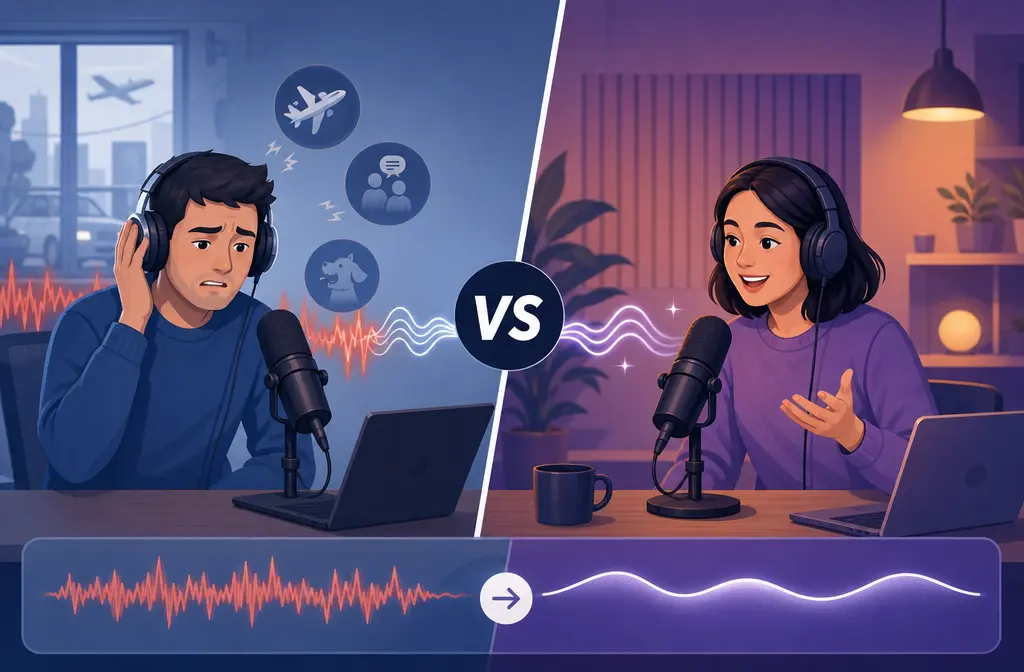
Krisp vs Adobe Podcast: Which Is Better for Live Calls, Podcasts, and Noisy Recordings?
Quick Answer
If you need people to hear cleaner audio during a live call, choose Krisp. It works through a virtual microphone and speaker setup, cleans audio in real time, and is built for Zoom, Teams, Meet, Discord, and similar call workflows, according to Krisp’s documentation. Source Source
If you already have a saved recording and want to improve it before publishing, choose Adobe Podcast Enhance Speech. It is a web-based upload tool for post-processing audio and, on paid plans, video. Source Source
If you need both, the practical workflow is simple: use Krisp to improve the live call experience, then run the exported recording through Adobe Podcast. If you want a simpler file-based alternative, SimpleClean is another tool from our team.
| Use case | Best choice | Why |
|---|---|---|
| Zoom, Teams, Google Meet, Discord calls | Krisp | It works live through Krisp Microphone and Krisp Speaker, so other people hear the cleanup immediately. |
| Sales calls, support calls, remote meetings | Krisp | Real-time bidirectional cleanup is the main requirement here. |
| Noisy podcast interview already recorded | Adobe Podcast | It is designed for after-the-fact speech enhancement on uploaded files. |
| Talking-head video with rough camera audio | Adobe Podcast | Paid plans support video upload and post cleanup. |
| Phone memo or voiceover file you already saved | Adobe Podcast | No call routing needed; just upload and process. |
| You need live cleanup and polished final export | Use both | Krisp helps the call; Adobe Podcast helps the final file. |
| You already have exported media and do not want virtual-device setup | File-based cleanup workflow | That is usually simpler than meeting-app routing plus browser upload limits. |
The biggest mistake shoppers make is comparing these tools like direct substitutes. They are not. The real difference is when they clean the audio:
- Krisp: before and during the call
- Adobe Podcast: after recording, by upload

Best for Live Calls: Krisp
Krisp is the better pick when your problem exists in the moment. According to Krisp’s setup and help documentation, it works by routing your call through Krisp Microphone and Krisp Speaker. That lets it clean both your outgoing and incoming audio in real time. Krisp also says its noise cancellation is processed locally on-device, and its help docs position it around noise cancellation, voice isolation, and echo cancellation. Source Source
That makes Krisp the straightforward answer for:
- Zoom and Teams meetings
- Customer support and sales calls
- Remote teams in noisy home environments
- Live webinars and voice chat
- Anyone who needs cleaner audio heard immediately by other participants
If your question is, “Is Krisp better than Adobe Podcast for Zoom or Teams?” the answer is yes, because Adobe Podcast is not the tool people on the other end of the call will hear in real time. Source
How Krisp works in practice
- Install Krisp.
- Select Krisp Microphone as your mic inside the meeting app.
- Select Krisp Speaker as your speaker inside the meeting app.
- Let Krisp handle the suppression instead of stacking multiple suppressors.
That last point matters. Krisp explicitly advises users to disable overlapping noise or echo suppression in the calling app, because double-processing can damage voice quality. Source
Best for Saved Recordings: Adobe Podcast Enhance Speech
Adobe Podcast Enhance Speech is the better pick when the recording already exists and you have time to process it before delivery. Adobe’s FAQ and product pages describe it as a web-based workflow: you upload a file, Adobe processes it, and you download the improved result. The tool is positioned for speech cleanup after recording, and paid plans add more control. Source Source
This is why Adobe Podcast is often the better answer for:
- A podcast interview recorded in a noisy room
- Scratch audio from a camera or phone
- A saved voice memo
- A YouTube voiceover or talking-head clip you can process before publishing
Adobe also notes that results depend on how audible the speech is and how much background noise is present. In plain English: if the voice is buried, clipped, or heavily damaged, no one-click enhancer can guarantee a perfect save. Source
Can Adobe Podcast work in real time?
No. Based on Adobe’s own documentation, Enhance Speech is a browser-based upload-and-process tool, not a live call processor. Source
Pricing and Plan Limits Snapshot
Many comparison pages blur this, so here is the clearer version from the supplied sources.
| Tool | Plan snapshot | What matters most |
|---|---|---|
| Adobe Podcast Enhance Speech Free | Audio only, one upload at a time, no strength adjustment, up to 30 minutes per file, up to 500 MB, and up to 1 hour of enhanced speech per day | Good for occasional cleanup of shorter audio files |
| Adobe Firefly Pro for Podcast features | Video support, bulk upload, strength control, up to 2 hours per file, up to 1 GB, and up to 4 hours of enhanced speech per day | Better for creators processing longer or more frequent uploads |
| Krisp Core | $16 monthly or $8 monthly billed annually, with unlimited noise cancellation | Best value when you need live cleanup regularly |
These limits and prices come from Adobe’s plans page and Krisp’s pricing page. Source Source
The main buying takeaway is simple:
- If you need live call cleanup every day, Krisp’s value is about workflow, not upload quotas.
- If you need post-production cleanup on saved files, Adobe’s limits matter more than its live usefulness, because it has none.
Sound Trade-Offs: Live Suppression vs Post Cleanup
Krisp and Adobe Podcast solve different problems, so they also involve different compromises.
When Krisp is usually enough
- Keyboard noise, fan noise, HVAC, and general room clutter during meetings
- Situations where intelligibility matters more than studio polish
- Calls where the other person mainly needs a cleaner version of your speech right now
For live communication, that is often exactly what you need. The goal is not “broadcast-perfect.” The goal is “clear enough that nobody asks you to repeat yourself.”
When Adobe Podcast may sound better—or more processed
- Single-speaker voiceovers
- Podcast dialogue you can repair before release
- Talking-head video where cleaner speech matters more than preserving every bit of room tone
The trade-off is that stronger post-processing can sound more obviously processed on some material. Adobe’s own FAQ also makes clear that output quality depends on speech audibility and background noise. Source
If your priority is YouTube voiceover cleanup on a damaged file, Adobe Podcast may be the better fit because it is built for after-the-fact enhancement. But if the original recording is already decent, heavier enhancement is not always the most natural-sounding option.
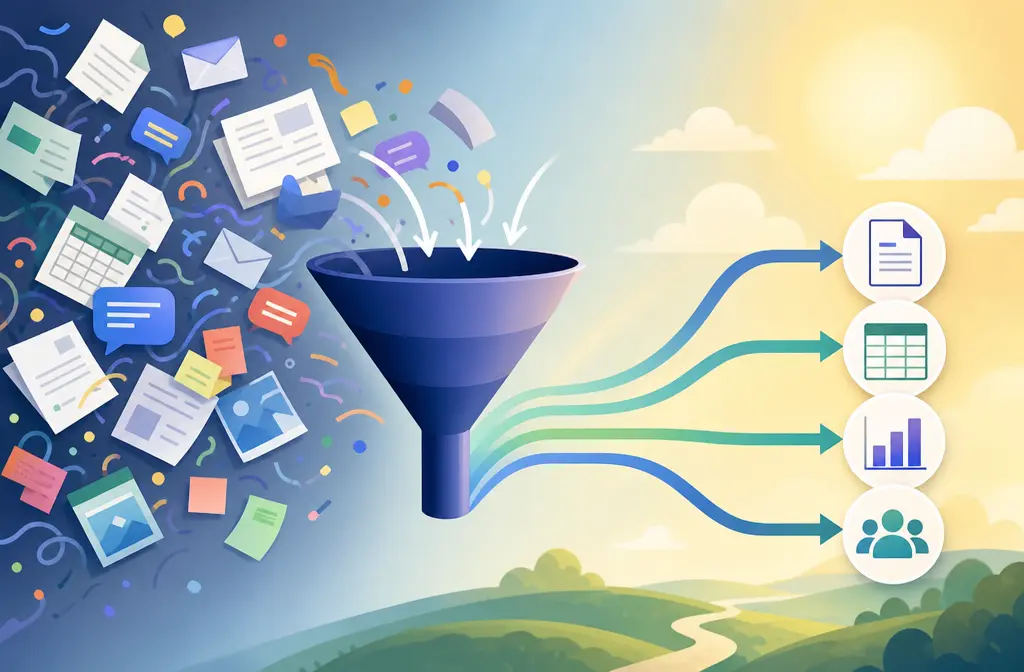
Setup Friction and Failure Points
This is the practical section most comparison posts skip.
Krisp setup friction
- You must route audio through virtual devices.
- You need to choose Krisp Microphone and Krisp Speaker inside each meeting app.
- If Zoom, Teams, or another app also applies suppression, stacked processing can reduce quality.
- It is a meeting-first workflow, so it is less useful if your audio problem starts after export.
Those setup realities come straight from Krisp’s own setup guidance. Source
Adobe Podcast friction
- It is browser-based, so you are uploading files instead of fixing the call live.
- Free-plan limits can block longer projects or multiple files.
- You may need the paid plan for video, bulk upload, or strength control.
- It does not solve what listeners heard during the original meeting or interview.
Adobe’s technical requirements and plans pages also matter here because browser support, file size, and plan limits can shape the workflow. Source Source
Use-Both Workflow: The Smart Hybrid Option
For many creators and teams, the best answer is not Krisp or Adobe Podcast. It is Krisp then Adobe Podcast.
- Use Krisp during the live session so participants hear cleaner audio in real time.
- Record the meeting, interview, or presentation.
- Upload the exported file to Adobe Podcast for a second pass if the final deliverable still needs more polish.
This hybrid approach is especially sensible for:
- Remote podcast interviews
- Client calls that become repurposed content
- Webinars later edited into clips
- Support or sales recordings that need clearer review copies
When Neither Is Ideal
Both tools are useful, but neither is magic. Based on the supplied source notes, you should lower expectations or change approach when you have:
- Overlapping speakers
- Severe clipping or distortion
- Strong wind
- Speech that is not clearly audible in the first place
- A need for cleaner exported dialogue without a meeting-app workflow
That last case is usually less about brand preference and more about workflow fit.
How to Choose in 60 Seconds
- Ask when the cleanup needs to happen. During a call means Krisp. After recording means Adobe Podcast.
- Ask whether you can upload the file later. If yes, Adobe Podcast becomes an option. If no, use Krisp.
- Check whether you want routing complexity. If virtual mic and speaker setup sounds annoying and you already have exported media, a file-based cleanup workflow may fit better.
- Check the limits. Adobe’s free plan is capped by duration, file size, one-at-a-time uploads, and daily enhancement hours. Source
- Avoid double-processing. If you use Krisp, disable overlapping suppression in the meeting app when possible. Source
Verdict
Choose Krisp if your main job is making live conversations sound cleaner on Zoom, Teams, Meet, Discord, or customer calls.
Choose Adobe Podcast if your main job is improving a noisy recording after it is already captured.
Use both if you run live sessions and also publish the recordings.
That is the real answer behind the Krisp vs Adobe Podcast search: one is for live call cleanup, the other is for post-production speech enhancement. For readers who just want a simpler file-based path, SimpleClean offers another option from our team.