Quick Answer
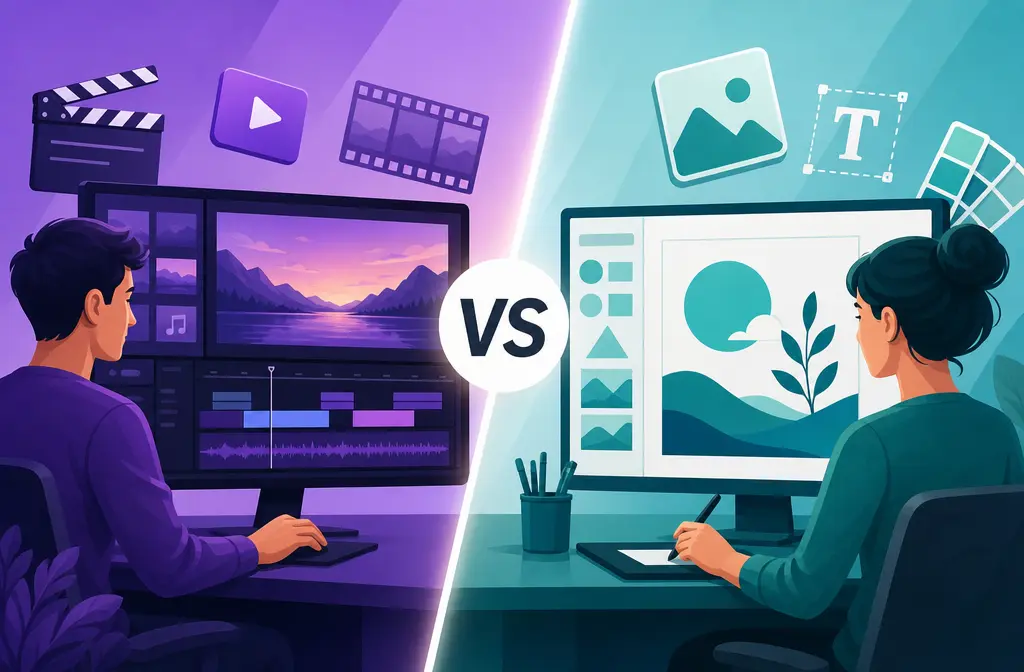
If you are choosing between Clipchamp and Canva for simple video editing plus voice cleanup, the short version is this:
- Choose Clipchamp if your priority is editing spoken video itself: trimming clips, working on a more video-focused timeline, adding captions, and reducing background noise inside the editor.
- Choose Canva if your video is part of a broader design and brand workflow: quick social promos, template-based content, and lightweight speech enhancement inside the same visual workspace.
For voice-first videos, Clipchamp usually has the clearer advantage because Microsoft specifically documents built-in noise suppression for audio clips, detached audio, and recordings, and says it helps reduce background noise, hum, and echo. Canva’s Enhance Voice is useful for bringing speech forward and reducing background noise, but Canva is generally the better fit when speed, templates, and branded asset production matter more than detailed editing control.
| Need | Better choice | Why |
|---|---|---|
| Talking-head videos with noisy dialogue | Clipchamp | Microsoft documents built-in noise suppression for reducing background noise, hum, and echo. |
| Branded social graphics plus video in one workflow | Canva | Better fit for template-first and brand-friendly creation. |
| Screen tutorials and lesson editing | Clipchamp | Usually the stronger choice when timeline editing is central to the job. |
| Fast promo clips for teams | Canva | Works well when video is one asset inside a larger design system. |
| Need heavier audio rescue | Tie, then export audio | Built-in tools are best for lighter cleanup; tougher audio may need separate cleanup. |
What Each Tool Is Best For
Clipchamp is best for:
- YouTube talking-head edits
- Course lessons and internal training clips
- Screen recordings where timing and cuts matter
- Creators who want in-app captions, audio cleanup, and export from one editor
- Windows users who want browser access plus a desktop option
Canva is best for:
- Branded social content
- Template-driven promos
- Small teams already building presentations, ads, thumbnails, and short videos in one place
- Quick repurposing workflows where design consistency matters more than deeper editing
- Light speech cleanup when the recording is already fairly usable
This split also matches broader third-party positioning: Zapier describes Clipchamp as a stronger Canva alternative when you need more robust video editing, while Canva remains the broader design workspace (source).

Clipchamp vs Canva for Audio Cleanup
This is where most comparison articles stay too vague. If your videos are voice-first, audio quality can matter more than transitions or templates.
What Clipchamp says it does
Microsoft says Clipchamp’s noise suppression works on audio clips, detached audio, and audio recordings. For video files, you must detach the audio first before applying it. Microsoft also says the feature reduces background noise, hum, and echo (Microsoft Support).
That matters because it tells you two practical things:
- Clipchamp’s cleanup is not just for standalone audio; it can help inside normal spoken-video workflows.
- It is aimed at common real-world problems like fan noise, room tone, electrical hum, and some room echo.
What Canva says it does
Canva positions Enhance Voice as an AI audio enhancer that removes background noise and brings speech forward (Canva Audio Enhancer). That is useful for creators making explainers, webcam videos, or social clips where the main goal is clearer speech without opening a separate audio app.
Which is better for noisy voiceovers?
Based on the supplied sources, Clipchamp has the stronger documented case for voice cleanup inside the editor. Microsoft is more specific about the kinds of issues its tool targets, including hum and echo, and explains how to use it on video by detaching audio first.
Canva still makes sense for lighter cleanup, especially when:
- the recording is already mostly clean
- the main issue is mild background noise
- you care more about finishing the social asset quickly than about squeezing the best possible dialogue quality from the file
Keep the claims conservative:
- Built-in cleanup is usually enough for light fan noise, room tone, and general voice polish.
- Built-in cleanup may not be enough for heavier echo, wind, or noise sitting directly under speech.
Editing Workflow Comparison
Audio cleanup matters, but so does how easy it is to finish the edit.
| Workflow area | Clipchamp | Canva |
|---|---|---|
| Timeline focus | More editing-centric overall | Now supports a multi-track timeline, but Canva says rollout is gradual |
| Audio cleanup | Noise suppression for audio tracks, recordings, and detached video audio | Enhance Voice for speech enhancement and background-noise reduction |
| Waveforms | Not specifically covered in the supplied sources | Canva says audio waveforms are included in the updated editor |
| Detached audio workflow | Yes, and required for applying noise suppression to video audio | Timeline-based audio handling is documented, but the supplied sources do not make an equivalent detach-first cleanup claim |
| Captions | Microsoft lists automatic transcript and captions | The supplied sources here are less specific on caption depth |
| Text to speech / AI helpers | Microsoft lists text to speech and auto cut | Not the focus of the supplied sources for this comparison |
| Platform | In-browser and Windows desktop | Browser-based workflow |
For buyer decisions, the bigger point is this:
- Clipchamp is the better pick when editing decisions drive the project.
- Canva is the better pick when the video sits inside a larger brand-content workflow.
Canva’s important caveat
Canva says its updated video editor includes a multi-track timeline, direct clip editing, audio waveforms, and trimming controls, but the rollout is gradual (Canva Help Centre). That means your experience can depend on whether your account already has the newer editor.
Exports and Platform Fit
The supplied sources support a few practical distinctions:
- Clipchamp is available both in-browser and on Windows desktop (Clipchamp product page).
- Microsoft’s feature comparison indicates 1080p export is broadly available, while 4K is available in higher tiers or versions (Microsoft feature comparison).
- Canva is strongest as a browser-based creation environment tied to broader design and collaboration workflows.
What does that mean in practice?
- If you want a simple editor that stays closer to standard video-editing tasks, Clipchamp is usually the safer choice.
- If your team already lives in Canva for decks, brand kits, social assets, and quick promotions, Canva may reduce context switching.
I would not choose solely based on export buzzwords. For most creators in this category, the real question is whether the project is editing-first or design-first.

Use-Case Verdicts
| Use case | Winner | Why |
|---|---|---|
| YouTube talking head | Clipchamp | Better fit for spoken-video editing and built-in noise suppression. |
| Course lesson | Clipchamp | Timeline editing and dialogue clarity matter more than template speed. |
| Webinar clip | Clipchamp | Usually better when trimming long speech sections and cleaning audio. |
| Social promo | Canva | Fast template-first creation and brand consistency are a natural fit. |
| Internal training | Clipchamp | Screen recording and narration workflows lean editing-first. |
| Podcast video | Clipchamp | Voice quality and caption workflow are usually more important than design templates. |
| Quick repurposing | Canva | Often faster when turning one message into multiple branded assets. |
Is Clipchamp Better Than Canva for Video Editing?
Usually, yes—if by “video editing” you mean the actual job of cutting spoken footage, cleaning dialogue, handling timeline edits, and exporting a finished lesson, tutorial, or talking-head video.
Usually, no—if your definition of the job is broader brand-content production, where video is only one piece alongside social graphics, presentations, and reusable templates.
That is why both tools win, depending on the workflow.
When Built-In Cleanup Is Enough vs When to Export Audio
The simplest rule is:
Stay inside Clipchamp or Canva when:
- the voice is understandable already
- the noise is steady and relatively light
- you need speed more than perfection
- the video is short-form and disposable enough that “good enough” is actually good enough
Export audio for separate cleanup when:
- echo is still obvious after one-click cleanup
- wind or harsh room noise competes with speech
- the speaker sounds distant or masked
- the video is important enough that poor audio will hurt retention or trust
If you need that separate cleanup step, another tool from our team, SimpleClean, can help with exported voice tracks before you bring them back into your edit.
How to Decide in 60 Seconds
- Pick Clipchamp if your main output is tutorials, course videos, screen recordings, webinar cuts, or YouTube talking-head content.
- Pick Canva if your main output is branded social clips and you already build most creative assets in Canva.
- Test the built-in audio cleanup first if the recording only has mild fan noise, room tone, or light background noise.
- Export audio for separate cleanup if echo, wind, or layered background noise is still distracting.
Best-for Recommendations
- Best for beginners who care about editing: Clipchamp
- Best for beginners who care about templates and brand consistency: Canva
- Best for screen recordings and tutorials: Clipchamp
- Best for short branded social content: Canva
- Best for built-in background-noise reduction on voice-first video: Clipchamp
- Best for teams already centered on design workflows: Canva
Sources
- How to use noise suppression | Microsoft Support
- Feature comparison between Clipchamp for work and personal versions | Microsoft Support
- Desktop and in-browser video editor: Microsoft Clipchamp
- Audio Enhancer: Enhance audio quality with AI | Canva
- Create and edit videos | Canva Help Centre
- Edit and trim audio tracks in Canva videos and designs | Canva Help Center
- The 7 best Canva alternatives | Zapier
Final Verdict
Clipchamp is the better choice for most people comparing Clipchamp vs Canva for spoken-video editing and audio cleanup. It is the stronger fit when your real job is editing tutorials, talking-head videos, lessons, and screen recordings, and Microsoft gives clearer documentation around noise suppression for background noise, hum, and echo.
Canva is the better choice when video is just one part of a faster brand-content system. If you are producing social promos, lightweight explainers, or repurposed clips inside an existing Canva workflow, its speech enhancement and design-first speed can be the more practical option.
If you want to test a separate cleanup pass after editing, SimpleClean is worth considering only when the built-in one-click tools still leave the voice too noisy or echoey.