Quick Answer
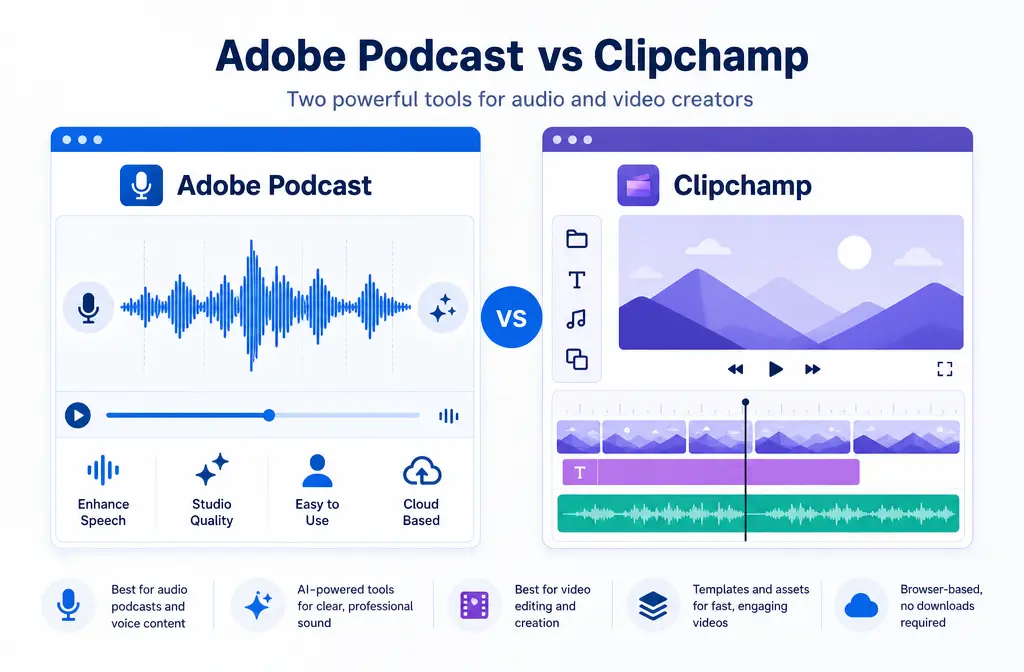
If your main goal is rescuing noisy spoken audio after recording, Adobe Podcast is usually the better first test. Adobe’s Enhance Speech is built for spoken-word cleanup, and Adobe officially offers browser-based enhancement with controls that can be dialed back if the result starts sounding artificial.
If you also need to trim video, edit on a timeline, and keep captions in the same app, Clipchamp is usually the better convenience choice. Its built-in noise suppression works inside the editor, but for video clips you need to detach the audio first before applying it.
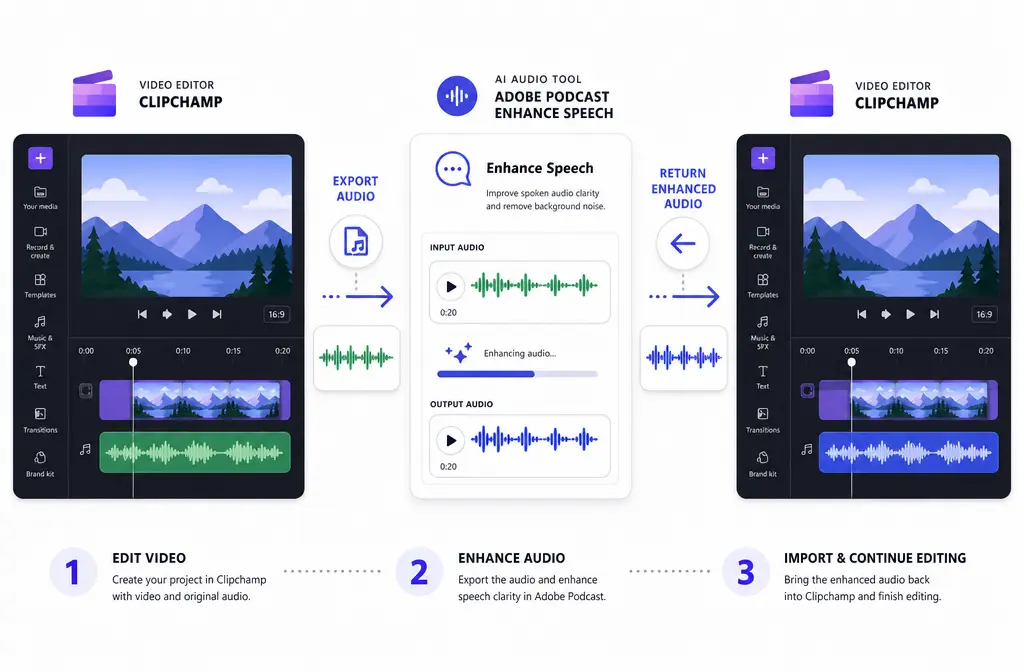
In practice, the best workflow for many creators is hybrid: edit the video in Clipchamp, export or detach the voice track, clean the speech in Adobe Podcast, then re-import the improved audio.
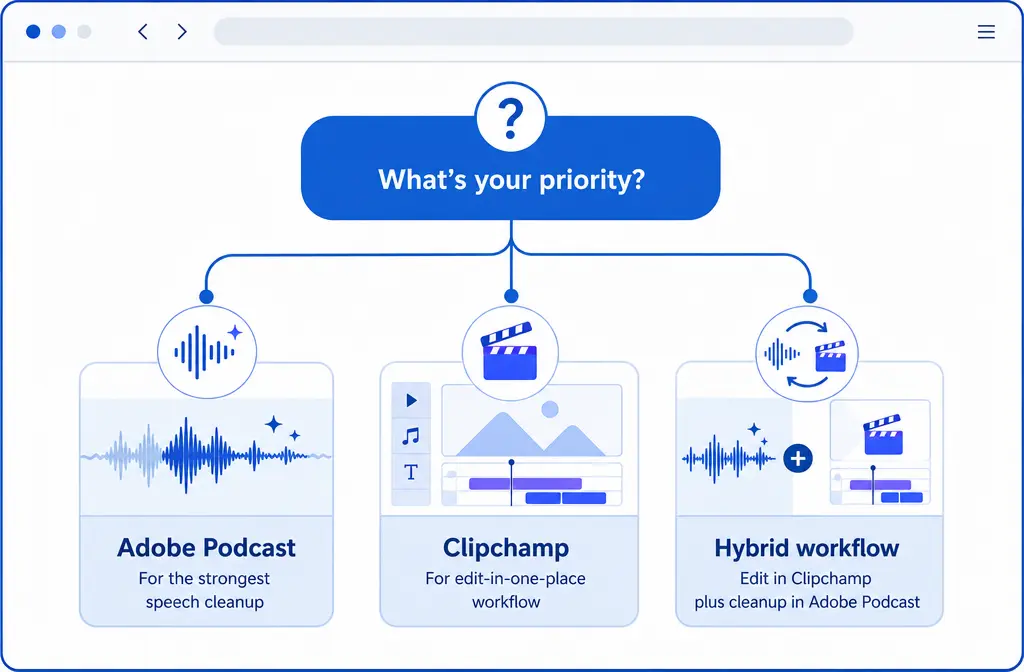
- Choose Adobe Podcast for the strongest one-click speech rescue.
- Choose Clipchamp for the fastest all-in-one lightweight video workflow.
- Choose the hybrid workflow when Clipchamp is your editor but the dialogue still needs heavier cleanup.
Adobe Podcast vs Clipchamp at a Glance
| Question | Adobe Podcast | Clipchamp |
|---|---|---|
| Best for strongest voice cleanup? | Yes — usually the better first test for noisy spoken dialogue | Usually not the strongest rescue tool |
| Best for editing video and audio in one place? | No — cleanup-focused workflow | Yes — simple editor with timeline and captions workflow |
| Works in the browser? | Yes | Yes |
| Can clean video files directly? | Premium adds video support according to Adobe’s features page | Works on video projects, but you must detach audio first to use noise suppression on a video clip |
| Free-plan highlights that matter here | Free tier supports audio only, up to 30-minute files, 500 MB max, and 1 enhanced hour per day | Personal version includes watermark-free exports up to 1080p |
| Best for captions/timeline editing? | No | Yes |
| Biggest tradeoff | Can sound overprocessed or robotic if pushed too hard | More convenient than specialized for speech rescue |
Who should choose Adobe Podcast vs Clipchamp?
Use this decision-first guide if you want the shortest answer possible:
- Pick Adobe Podcast if the recording is already done and the voice needs the biggest rescue from noise, echo, or poor recording conditions.
- Pick Clipchamp if you are already editing a video there and want to keep trimming, captions, and export in one simple workflow.
- Pick Adobe Podcast first, then Clipchamp for YouTube talking-head videos, course lessons, and social clips where speech clarity matters more than speed.
- Pick Clipchamp first, then export to Adobe Podcast when you are not sure the audio problem is severe and want to test the built-in fix before leaving the editor.
SimpleClean becomes a useful fallback when Clipchamp leaves too much steady noise behind or when Adobe Podcast removes the noise but makes the voice feel too processed. In those cases, it is often smarter to export one spoken-word file and do a separate cleanup pass instead of stacking aggressive fixes in multiple tools.
What each tool actually does
Adobe Podcast: Enhance Speech
Adobe positions Podcast as a web-based recording and editing tool with Enhance Speech. In this comparison, that is the feature that matters most. It is designed to improve spoken-word recordings after the fact, and Adobe’s own documentation notes that output quality depends on how audible the speaker is and how much background noise is present.
Adobe also says you may need to dial back enhancement strength if the output starts sounding robotic. That warning matters because Adobe Podcast often cleans more aggressively than editor-native suppression tools, which is why it can win on bad dialogue and also why it can occasionally sound overdone.
Clipchamp: noise suppression inside the editor
Clipchamp’s built-in audio cleanup is noise suppression inside the video editor. Microsoft’s support documentation says it reduces background noise, hum, and echo. That makes it useful for everyday creator problems, especially when you want to keep your whole workflow inside one editor.
The important limitation is workflow-related: for video clips, you need to detach the audio first before you can apply noise suppression. So Clipchamp is convenient, but it is still not a one-click “fix anything” speech restoration tool in the same sense as Adobe Podcast’s Enhance Speech.
Best for recommendations
- Best for strongest cleanup: Adobe Podcast
- Best for fastest video workflow: Clipchamp
- Best when you need captions and timeline editing in one place: Clipchamp
- Best free option for testing spoken-word rescue: Adobe Podcast, if your file fits the free limits and you only need audio
- Best free option for simple video editing with usable exports: Clipchamp personal, because Microsoft says it supports watermark-free exports up to 1080p
- Best hybrid workflow: Clipchamp for editing + Adobe Podcast for the voice cleanup pass
Current limits that affect the choice
The feature limits matter here because these tools are not interchangeable.
Adobe Podcast limits that matter
- Free tier supports audio only
- Free tier supports files up to 30 minutes
- Free tier supports files up to 500 MB
- Free tier includes 1 enhanced hour per day
- Premium raises limits and adds video support, bulk upload, and strength controls
If you mainly work with short voiceovers, podcasts, and social-video dialogue, those limits may be enough. If you want to clean video directly inside Adobe Podcast, you will need Premium based on Adobe’s features page.
Clipchamp limits that matter
- Clipchamp personal includes a free editing tier
- Microsoft says personal accounts can export watermark-free up to 1080p
- Clipchamp’s pricing pages position AI audio editing tools within the plan comparison
Because the supplied sources do not include a full current feature matrix for every Clipchamp plan, the safest takeaway is this: Clipchamp is a strong low-friction editor choice, but you should verify the exact plan features you need before committing to a workflow.
Is Adobe Podcast better than Clipchamp for background noise removal?
Usually, yes for spoken voice cleanup. That does not mean Adobe Podcast is better for every project. It means that when the problem is specifically “this voice recording sounds rough and I need the clearest dialogue I can get quickly,” Adobe Podcast is usually the more purpose-built first test.
Clipchamp can absolutely be enough when:
- the noise is modest rather than severe
- you are already editing the video there
- you want the simplest possible workflow
- you do not want to bounce files between tools unless necessary
Adobe Podcast tends to pull ahead when:
- the background noise is distracting enough that a standard editor cleanup may not go far enough
- room echo makes the voice feel distant
- you care more about dialogue intelligibility than staying in one timeline
Audio quality differences in real use
This is where most comparison pages stay vague. The practical difference is not just “one has AI.” It is what kind of bad audio problem you are trying to solve.
Steady hiss, hum, or fan noise
Both tools are relevant here. Clipchamp explicitly says it reduces background noise and hum, so it is reasonable to try first if you are already in the editor. Adobe Podcast is still often the stronger speech-first test if the voice is badly masked by that noise.
Room echo
Microsoft says Clipchamp reduces echo, but Adobe Podcast is still usually the stronger bet when the voice sounds thin, roomy, or far away and the main goal is spoken-word improvement. Echo is also one of the cases where aggressive cleanup can create artifacts, so preview carefully.
Traffic or outdoor environmental noise
Adobe Podcast is usually the more likely first choice when the voice needs heavier rescue. But neither tool should be expected to perfectly fix severe outdoor recordings, especially if the speech is partly masked.
Overlapping speech
This is a limitation zone for both tools. If two people talk over each other, neither one should be treated as a guaranteed fix. Cleanup is easiest when there is one clear speaker.
Music under dialogue
Be careful here. Adobe Podcast is built around speech enhancement, not subtle dialogue-plus-music mixing. Clipchamp may be the safer environment if you are balancing edited video elements on a timeline, but neither tool should be expected to perform perfect source separation just because music is present.
Severe clipping or heavy wind
These are also outside the “easy win” category. The source brief specifically flags severe clipping and heavy wind as situations where neither tool is enough. For a single exported spoken-word file, a separate cleanup pass may be the more realistic next step than stacking stronger and stronger enhancement.
Artifact risks: what can go wrong?
No cleanup tool is magic. The more damaged the source audio is, the more likely you are to hear tradeoffs.
- Robotic voice: Adobe explicitly warns that Enhance Speech may need to be dialed back if the output starts sounding robotic.
- Overprocessed tone: Strong speech enhancement can make the voice sound unnaturally polished or detached from the room.
- Muffling: Noise reduction that pushes too hard can remove useful speech detail along with the noise.
- Pumping: Background sound may swell and dip around the voice if suppression is too aggressive.
The safest habit is to stop as soon as the voice becomes clear enough. Chasing total silence often hurts the dialogue more than it helps.
Use Clipchamp first or export to Adobe Podcast?
Here is the simplest decision tree:
- Use Clipchamp first if the audio problem seems minor, you are already editing there, and you want to keep the whole job inside one timeline.
- Export to Adobe Podcast first if the voice is clearly rough, echoey, noisy, or distant and speech clarity is the top priority.
- Use the hybrid workflow if you want Clipchamp for editing convenience but need a stronger cleanup pass than its built-in suppression delivers.
For many creators, this avoids wasted time: do a fast in-editor test first when the issue is small, but move to Adobe Podcast quickly when the dialogue still sounds amateur after one pass.
Hands-on workflows
Workflow 1: Use Clipchamp only
- Import your video into Clipchamp.
- If your source is a video clip, detach the audio. Microsoft’s support page says this step is required before using noise suppression on video audio.
- Select the audio clip and open the Audio tab.
- Turn on noise suppression.
- Preview the result and compare it with the original.
- Continue editing captions, trims, cuts, and timeline timing in the same project.
- Export the finished video.
Best for: light-to-moderate cleanup, quick social edits, internal videos, and simple creator workflows.
Workflow 2: Use Adobe Podcast only
- Export or save the spoken-word audio file from your recorder or editor.
- Upload it to Adobe Podcast Enhance Speech in the browser.
- Preview the result carefully.
- If available in your plan, reduce strength if the voice starts sounding robotic or overprocessed.
- Download the cleaned audio and use it as your final voice file or reinsert it into your video editor.
Best for: podcasts, voiceovers, talking-head dialogue, course narration, and rough recordings where the voice needs the biggest rescue.
Workflow 3: The hybrid workflow most people actually need
- Edit the video structure in Clipchamp first: trim mistakes, remove dead space, and lock the timing.
- Detach or export the voice audio once the edit is stable.
- Upload that spoken-word file to Adobe Podcast.
- Enhance the speech and listen for artifacts.
- Re-import the cleaned audio into Clipchamp.
- Line it up with the original timeline and mute or remove the old track.
- Do your final captions and export.
Best for: YouTube videos, course lessons, product demos, and any project where you need both simple editing and stronger voice cleanup.
Video-specific considerations
- Detach-audio friction in Clipchamp: this is the biggest workflow catch. You cannot just click a noisy video clip and expect suppression to run directly on the attached soundtrack.
- Direct video support in Adobe Podcast: Adobe’s features page says Premium adds video support, which matters if you want to upload video files instead of audio-only exports.
- Reimport step: if you clean audio outside Clipchamp, you will need to replace the old track and check sync.
- MP4/MOV expectations: the supplied sources confirm Adobe has a video-cleaning workflow page, but this article avoids unsupported format claims beyond the official video-support framing.
Who each tool is for
Adobe Podcast is better for
- Podcasters cleaning spoken-word recordings
- YouTubers with noisy voiceovers or talking-head audio
- Course creators fixing narration after recording
- Marketers who care more about voice clarity than staying in one editor
Clipchamp is better for
- Solo video editors who want one lightweight app
- Creators who need captions, cuts, and export in the same workflow
- Internal comms teams making simple update videos
- Anyone whose audio only needs modest suppression rather than major restoration
When neither tool is enough
Both tools are strongest when there is one main speaker and the source is flawed but still understandable. Neither one should be your miracle fix for:
- overlapping voices
- severe clipping
- heavy wind
- speech that is buried under loud competing sound
If you are at that point, do not keep stacking aggressive cleanup passes just because each tool has a noise feature. That often makes the voice worse.
When SimpleClean is the better fallback
If Clipchamp removes some noise but leaves too much steady hiss, hum, or fan sound, or if Adobe Podcast improves clarity but the voice starts sounding overly processed, a cleaner next move is to export one final spoken-word file and run a separate pass with improve spoken-word audio with SimpleClean.
That workflow makes the most sense when:
- you already finished the edit and just need one cleanup pass on the final voice track
- you do not want to keep bouncing between timeline edits and enhancement tests
- Adobe Podcast sounds too synthetic at stronger settings
- Clipchamp’s built-in suppression is helpful but not quite enough
Used this way, it is not about claiming one tool beats every other tool. It is about avoiding stacked processing and choosing the simplest next step for a single exported file.
Final verdict
Adobe Podcast wins for strongest one-click spoken-word rescue. If the recording is noisy and the voice itself is the problem you need to solve, start there.
Clipchamp wins for convenience. If you are already editing video, need captions and timeline work, and the audio issue is not too severe, it is often the fastest path.
For a lot of real projects, the smartest answer is not Adobe Podcast or Clipchamp. It is Clipchamp for the edit, Adobe Podcast for the voice cleanup.
Sources
- Adobe Podcast features
- Adobe Podcast FAQ
- Enhance Speech for video
- What’s new in Adobe Podcast?
- How to use noise suppression | Microsoft Support
- What Clipchamp products are there and what's their cost?
- Microsoft Clipchamp pricing
- What is Clipchamp?
FAQs
Does Clipchamp remove echo or just background noise?
Microsoft says Clipchamp noise suppression reduces background noise, hum, and echo. For video clips, you need to detach the audio first before applying it.
Can Adobe Podcast clean video files or only audio?
According to Adobe’s features page, the free tier supports audio only. Premium adds video support.
Do you need to detach audio in Clipchamp before using noise suppression?
Yes. Microsoft’s official Clipchamp workflow says that for video audio, you first detach the audio and then apply noise suppression from the Audio tab.
Which free plan is more generous: Adobe Podcast or Clipchamp?
It depends on the job. Adobe Podcast’s free tier is generous for testing audio-only speech cleanup if your files fit its limits. Clipchamp’s free personal version is generous for simple video editing because Microsoft says it supports watermark-free exports up to 1080p.
What should you use for YouTube voiceovers: Adobe Podcast or Clipchamp?
If the main problem is voice quality, start with Adobe Podcast. If you are doing a quick edit and only need light suppression inside a simple video editor, Clipchamp may be enough.
When should you export from Clipchamp and clean the file separately?
Export from Clipchamp when the built-in suppression does not go far enough, when the voice still sounds distant or noisy after one pass, or when heavier in-editor processing starts to hurt clarity.